GPT Image 2: What OpenAI's New Image Model Can Do (and How to Use It)
GPT Image 2 is OpenAI's state-of-the-art model for generating and editing images. What it does, generation vs editing, how it compares, how to access it, and the no-setup way to use it.
GPT Image 2 is OpenAI's state-of-the-art image model for generating and editing images. It takes text and image inputs and produces images, supports flexible sizes and high-fidelity image inputs, and is available through OpenAI's API. If you've seen the name and want to know what it actually does, how it's different from just "an image generator," how to access it, and the fastest way to start creating with it (without wrangling an API), this guide covers all of it.
What Is GPT Image 2?
GPT Image 2 is OpenAI's latest image-generation-and-editing model, described in OpenAI's own docs as a "state-of-the-art image generation model" built for "fast, high-quality image generation and editing." It sits in the GPT Image line (the successor generation to gpt-image-1 and gpt-image-1-mini), and OpenAI rates its output quality as "Highest," with "Medium" speed; i.e., it's tuned for fidelity over raw throughput.
Two things make it more than a text-to-picture toy:
- It edits, not just generates. GPT Image 2 accepts image inputs: you can hand it an existing image and have it modify, extend, or restyle it, not only create from scratch.
- It takes text and image input together. That multimodal input means you can describe a change in words while pointing at the image it applies to, which is what makes real editing workflows possible.
Its output is always an image (no audio or video), and there's a dated snapshot (gpt-image-2-2026-04-21) for teams that need to pin a specific version for reproducibility.
What GPT Image 2 Can Do
The model's stated capabilities cluster around quality and flexibility:
- High-quality generation from a text prompt. OpenAI rates performance "Highest."
- Image editing from an existing image plus instructions, via a dedicated edit endpoint.
- Flexible image sizes, so you're not locked to one aspect ratio.
- High-fidelity image inputs, meaning it preserves detail from the source images you give it.
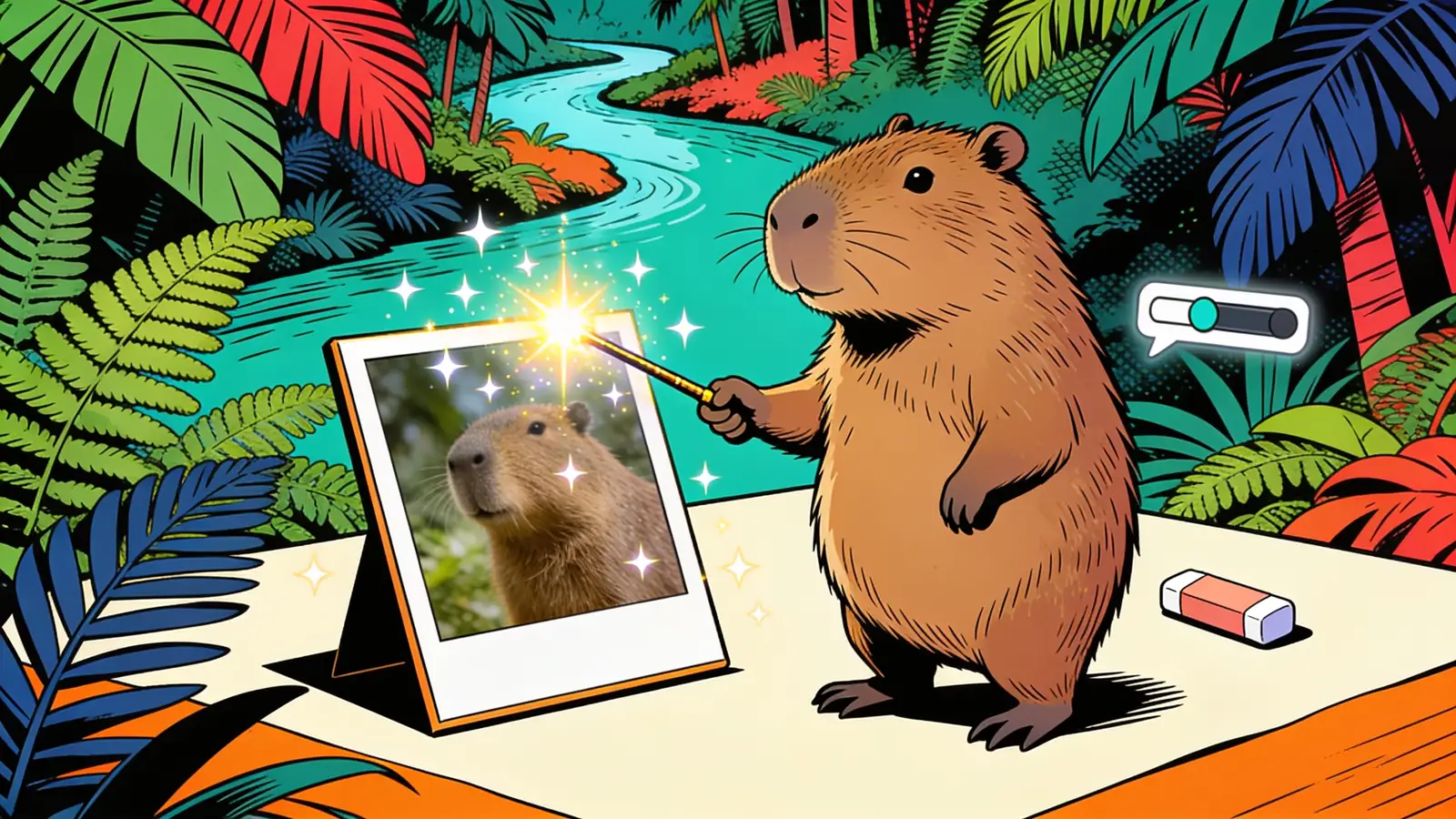
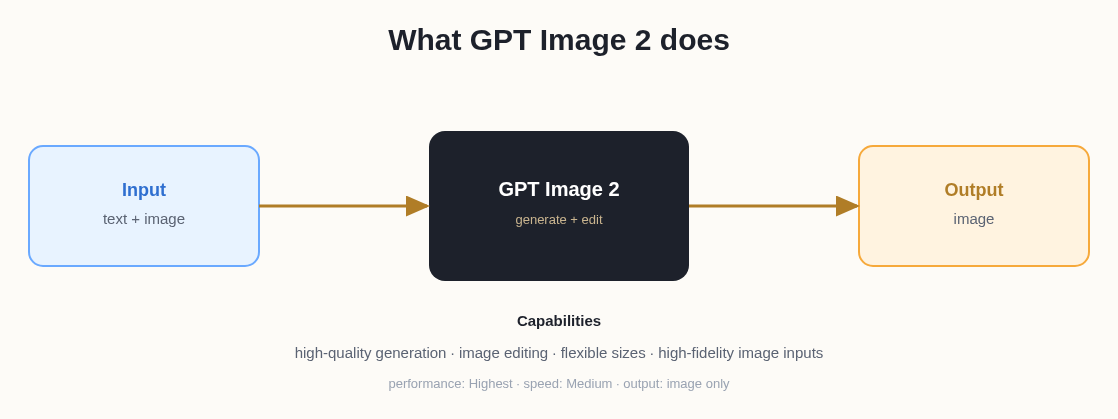 GPT Image 2 takes text and image input and produces images: generation and editing in one model.
Generation vs Editing: Two Modes, One Model
It helps to think of GPT Image 2 as having two jobs:
- Generation: you provide a text prompt and get a new image. This is the classic "make me a picture of X" flow, handled through the image-generation endpoint.
- Editing: you provide an existing image (and optionally a mask) plus a prompt, and the model returns a modified version. This is where the "high-fidelity image inputs" matter: the model works from your image rather than inventing everything anew.
That dual nature is why GPT Image 2 fits production workflows, not just one-off art: you can generate a base asset and then iterate on it with edits, all in the same model family.
How GPT Image 2 Fits Among Image Models
You don't pick an image model in a vacuum, so here's the honest placement. GPT Image 2 is OpenAI's quality-first option in a field that now includes several strong models: Google's Gemini image models (the line widely nicknamed "Nano Banana"), ByteDance's Seedream line, and others. They trade blows on different axes (style, text rendering, editing, speed, price), and the "best" one genuinely depends on the image and your taste.
| If you want… | Consider |
|---|---|
| OpenAI's quality-first generation + editing | GPT Image 2 |
| A fast, widely-used image model in Google's ecosystem | Gemini image (Nano Banana) |
| An alternative high-quality generator | Seedream |
The practical takeaway: GPT Image 2 is a top-tier choice when output fidelity matters, but the only way to know which model suits your images is to run the same prompt through a few, which is much easier on a platform that hosts several (more below).
How to Access GPT Image 2
OpenAI exposes GPT Image 2 through its API, across several endpoints:
- Image generation (
v1/images/generations): text → image. - Image edits (
v1/images/edits): image + prompt → edited image. - It's also reachable via the Responses and Chat Completions APIs.
A few realities to plan around (all per OpenAI's model docs): there is no free tier for GPT Image 2, and usage is governed by tiered rate limits that scale with your OpenAI account tier. Streaming, function calling, structured outputs, and fine-tuning are not supported. It's a focused image model, not a general-purpose endpoint.
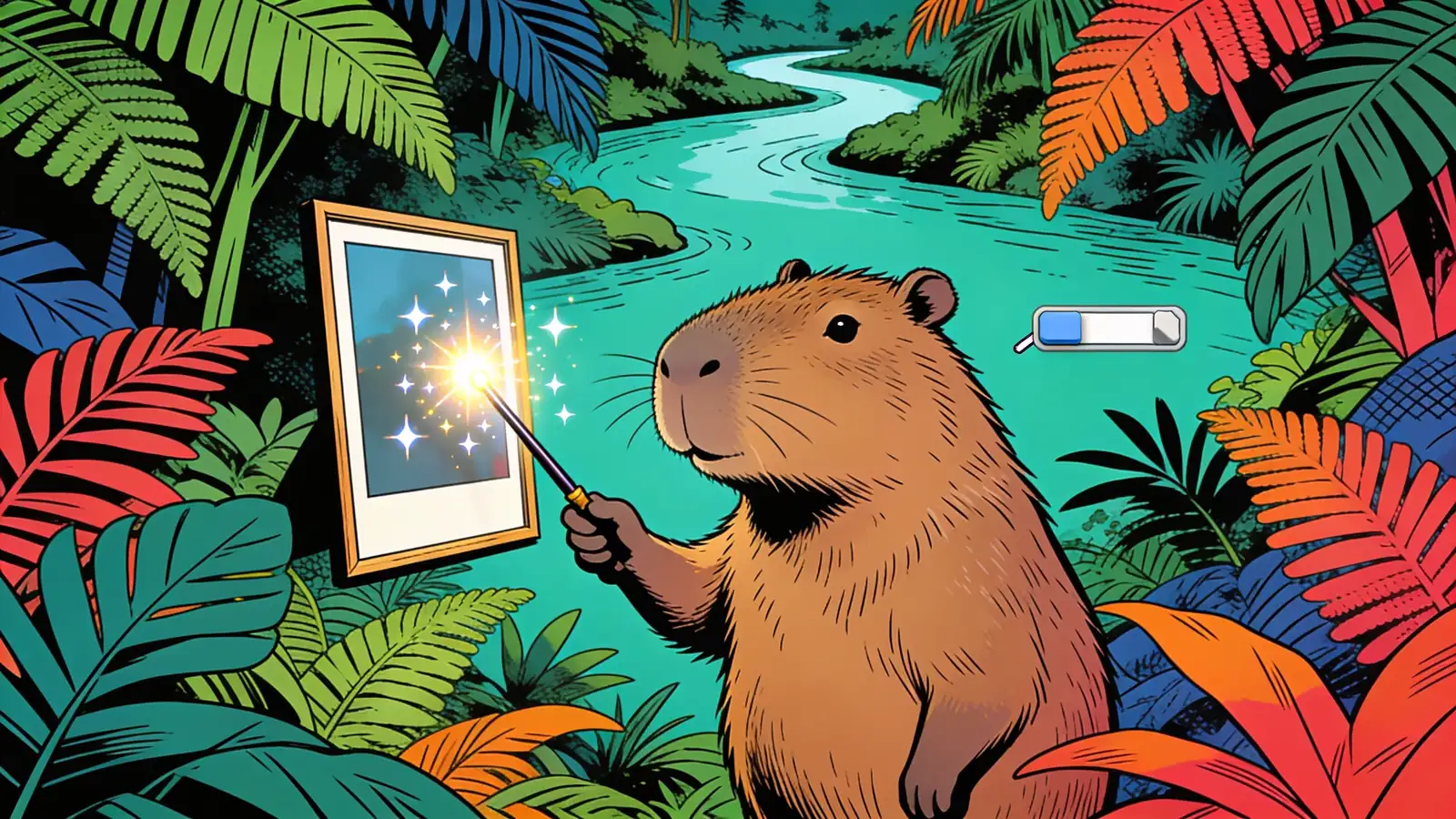
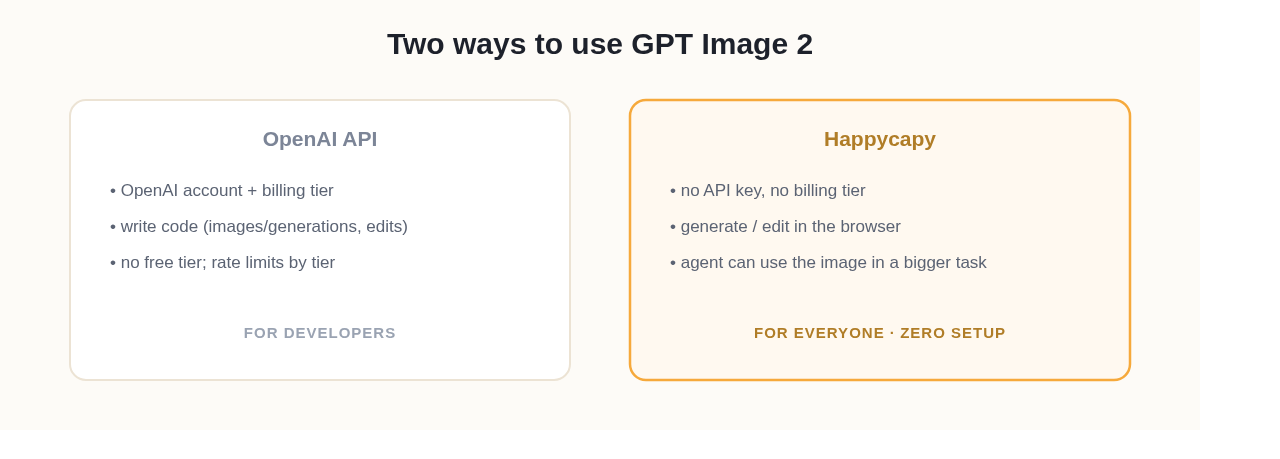 Two ways in: the raw API (account + tier + code) or a managed platform with no setup.
What GPT Image 2 Doesn't Do
It's worth being clear about the boundaries, because they shape how you use it. GPT Image 2 outputs images only: no audio, no video. And as a focused image model it deliberately omits the general-purpose API features: no streaming, no function calling, no structured outputs, and no fine-tuning. Practically, that means you don't adapt GPT Image 2 to your own data the way you might an open-weight model. You steer it through prompts and edits, not training. If your use case demands a model you can fine-tune or self-host, an open image model is the better fit; if you want OpenAI's hosted quality with zero model-ops, GPT Image 2 is built for exactly that. (That hosted-vs-open trade-off runs across the whole model landscape; it's the same calculus we walk through for text models like MiniMax M2.7.)
The Easiest Way to Use GPT Image 2: In Your Browser
Calling the API directly means an OpenAI account, a billing tier, and code. If you just want to create with GPT Image 2 (no keys, no tier management, no scripts), the fastest path is Happycapy. GPT Image 2 is one of the 150+ models available in Happycapy, an agent-native computer that runs in your browser: you describe the image you want (or hand it one to edit), and the model generates it inside your workspace, no API setup at all.
There's a bigger advantage hiding here, too. Because Happycapy is an agent platform, image generation isn't a dead end. An agent can use GPT Image 2 as one step in a larger task: generate the hero image and drop it into a landing page, or produce a set of on-brand graphics for a deck it's building. And because Happycapy hosts many image models side by side, you can run the same prompt through GPT Image 2, a Gemini image model, and Seedream to see which you prefer, without three separate accounts.
Start free at happycapy.ai, pick GPT Image 2, and generate (or edit) your first image in a browser tab. It's the quickest way to see its quality for yourself, with zero setup.
A Realistic Workflow: From Prompt to Published
Here's where the generate-plus-edit profile earns its keep. Say you need a hero image for a landing page. With a bare image endpoint you'd generate a candidate, download it, notice the composition is slightly off, regenerate, download again, then hand it to whatever's building the page. GPT Image 2's editing capability collapses the middle: you generate the base, then edit it ("move the subject left, warm up the lighting, leave room for a headline on the right") instead of rerolling from scratch, preserving what already worked thanks to its high-fidelity handling of the input image.
The bigger leap is when the model isn't called in isolation but as one step an agent runs. Instead of "generate an image" being the end of the task, it becomes the middle: an agent can generate the hero with GPT Image 2, drop it straight into the page it's building, and produce matching social crops, all in one flow. That's the difference between an image endpoint and image generation embedded in an agent that's actually doing the job.
Why an Agent Beats a Bare Endpoint
A raw API call gives you a file. An agent gives you an outcome. When GPT Image 2 lives inside an agent platform, the generated image can immediately feed the next step (placed in a document, attached to a deck, iterated against feedback, or batch-produced across a set of prompts) without you shuttling files between tools. For most real work ("I need on-brand graphics for this campaign"), that end-to-end capability matters more than any single image's quality, because it removes the manual glue between "made the image" and "used the image."
Practical Use Cases
Where GPT Image 2's generation-plus-editing profile pays off:
- Marketing & social assets: generate on-brand graphics, then edit variants for different channels.
- Product & e-commerce: create or clean up product imagery, swap backgrounds, restyle shots.
- Design iteration: start from a generated concept and refine it with successive edits rather than regenerating from scratch.
- Content & blog imagery: produce illustrations and covers on demand (in fact, generating custom blog cover art, instead of recycling stock photos, is a textbook use of a high-fidelity image model, and a cheap way to make every article look bespoke).
- Mockups & prototypes: quickly visualize UI, packaging, or scene ideas before committing design time.
Tips for Better Results
- Be specific about the subject, style, and composition. Vague prompts get generic images; name the medium, mood, palette, and framing.
- Use editing instead of regenerating. When something's close, feed the image back with an edit instruction rather than rolling the dice on a fresh generation.
- Iterate in small steps. One change per edit is easier to control than a paragraph of simultaneous changes.
- Pin a snapshot for production. If you need consistent output over time, target the dated snapshot rather than the floating alias.
- Provide a reference image when you can. Editing from a high-fidelity input gives you far more control than describing a scene from scratch. Lean on the editing mode for anything that needs to match existing assets.
- Generate a few variants, then commit. It's cheaper in effort to pick from three generations than to perfect one prompt; generate a small spread, choose the closest, and refine it with edits.
Frequently Asked Questions
Q: What is GPT Image 2?
It's OpenAI's state-of-the-art image model for generating and editing images. It takes text and image inputs, outputs images, supports flexible sizes and high-fidelity image inputs, and is accessed through OpenAI's API.
Q: Can GPT Image 2 edit existing images, or only generate new ones?
Both. It has a dedicated image-edit endpoint and accepts high-fidelity image inputs, so you can modify or restyle an existing image, not just generate from a text prompt.
Q: Is GPT Image 2 free?
There's no free tier for GPT Image 2 via the API; usage is billed and governed by tiered rate limits. You can, however, use it without your own API billing through a managed platform like Happycapy, which bundles model access into its plans (including a free tier to start).
Q: How is GPT Image 2 different from other image models like Nano Banana or Seedream?
GPT Image 2 is OpenAI's quality-first generation-and-editing model; Gemini's "Nano Banana" and ByteDance's Seedream are strong alternatives that trade off differently on style, speed, and price. There's no universal winner. The reliable test is running the same prompt through each, which platforms that host multiple models make easy.
Q: How do I use GPT Image 2 without writing code?
Use it through a managed platform like Happycapy, where GPT Image 2 is one of 150+ models available in the browser. You describe or upload an image and it generates: no API key, no billing tier, no scripts.
Q: What image sizes does GPT Image 2 support?
OpenAI describes it as supporting flexible image sizes rather than a single fixed aspect ratio, so you can target the dimensions your use case needs (square, landscape, or portrait) instead of cropping after the fact.
Q: Can I pin a specific version of GPT Image 2?
Yes, there's a dated snapshot, gpt-image-2-2026-04-21. Target the snapshot when you need consistent, reproducible output over time, rather than the floating alias which can change as the model is updated.
Q: What can I build with GPT Image 2?
Marketing and social graphics, product and e-commerce imagery, design iterations, blog and content illustrations, and mockups: anywhere you need high-quality generated images or precise edits to existing ones. And inside an agent platform, those images can flow straight into the document, page, or deck you're actually building.