Creators and small shop owners
Quickly prototype sticker pack ideas for Etsy, Redbubble, or Sticker Mule without needing illustration skills. Test concepts before investing in a professional designer.
Type it. Stick it. AI stickers in seconds. Powered by paid AI image models — no free tier.
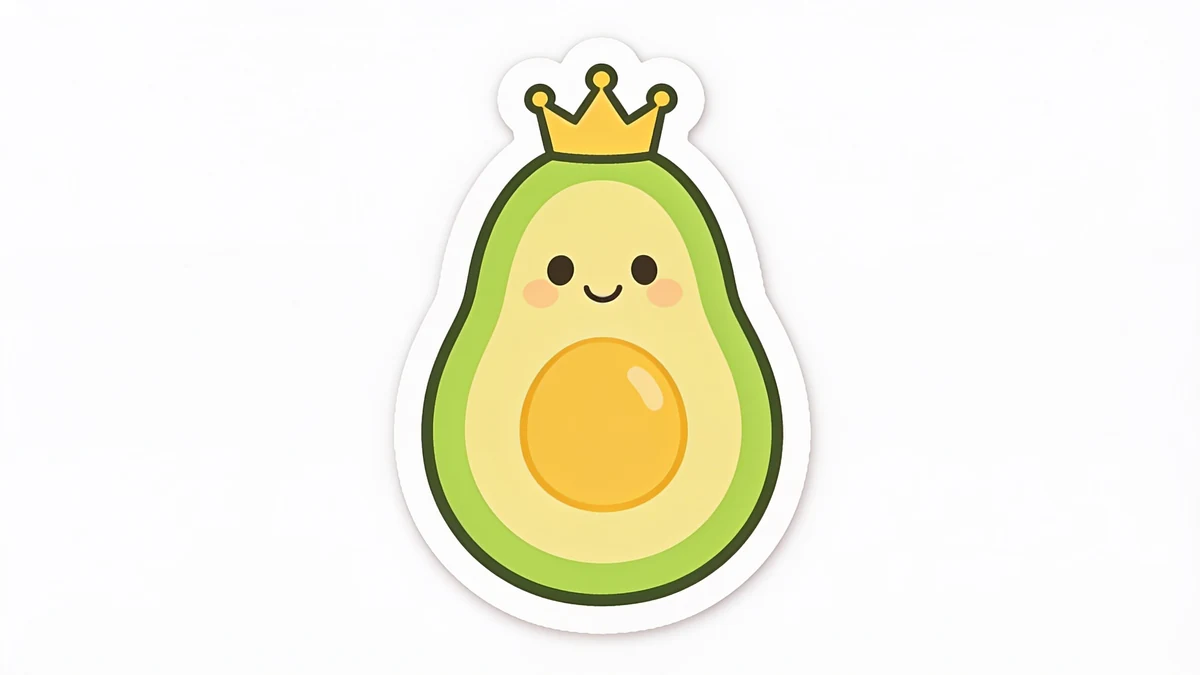
Generated from: "a die-cut sticker of a smiling avocado wearing a tiny crown, kawaii style, pastel colors, thick white border."
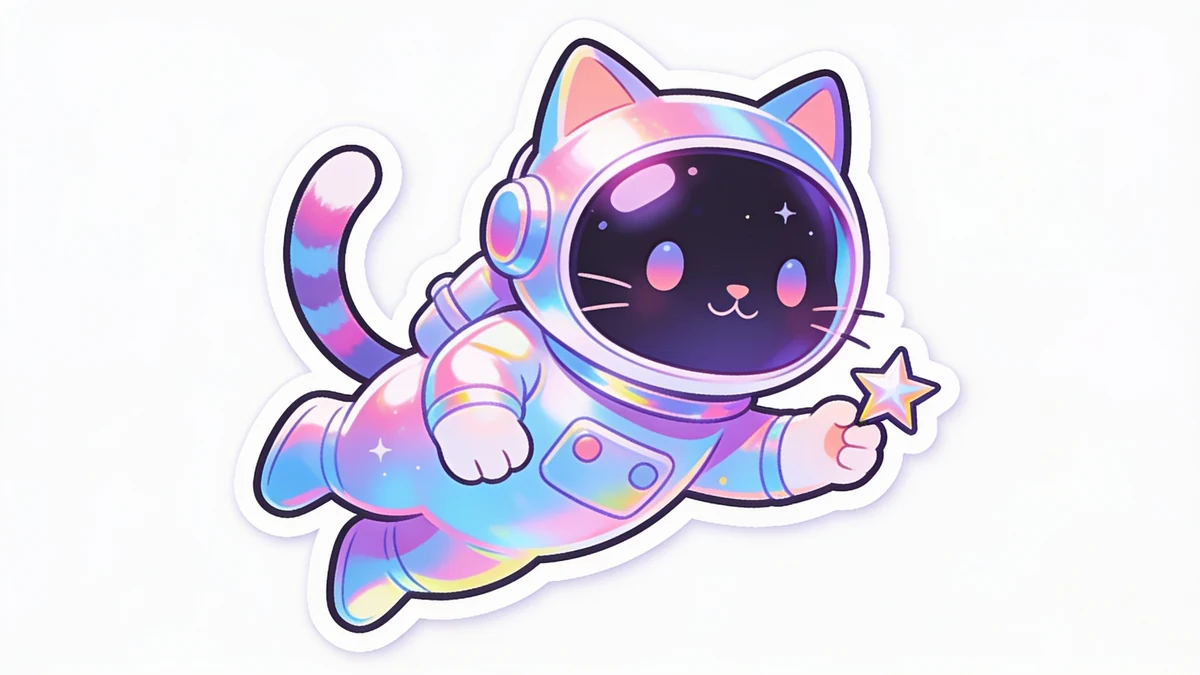
Generated from: "a die-cut sticker of a cartoon astronaut cat floating in space holding a star, holographic foil style."
Describe a sticker subject, style, border, and background to create a usable sticker image.
Type what you want — a character, object, phrase, or full pack concept. Mention the style (kawaii, pixel, cartoon), colors, and any border or finish details you have in mind.
Quickly prototype sticker pack ideas for Etsy, Redbubble, or Sticker Mule without needing illustration skills. Test concepts before investing in a professional designer.
Generate custom chat emotes, subscriber badges, and reaction stickers that match your brand's vibe — kawaii, pixel, or cartoon — without a long design turnaround.
Create fun themed stickers for reward charts, party favors, name labels, or classroom decorations in minutes, tailored to any topic or occasion.
Always include a style keyword — 'kawaii,' 'flat cartoon,' 'pixel art,' 'line art,' or 'holographic foil look.' Without it, results default to a generic illustrated style that may not match your vision.
Add 'thick white border' or 'bold black outline, die-cut style' to your prompt. This gives the sticker a finished, print-ready look and helps the subject pop against any background.
Always include 'transparent background' or 'isolated on white' in your prompt. This tells the model to treat the sticker as a cutout object rather than placing it in a scene.
Keep the core subject tight — 'a chubby panda holding a coffee cup' beats a long paragraph. Add adjectives for mood (grumpy, cheerful, sleepy) to guide the character's expression.
For multi-sticker outputs, say 'a set of 6 stickers showing [subject] in different poses/emotions.' Giving a specific number helps the model fill the canvas with a coherent collection.
Mention key colors or palettes — 'pastel pink and mint,' 'neon on black,' 'earth tones' — especially for label or branding stickers. This keeps your pack visually consistent across multiple generations.
Review output quality, follow-up checks, and download expectations for AI stickers.
Most prompts produce a usable sticker concept within the first two or three generations. Expect clean, illustration-quality results for common subjects (animals, food, objects, simple characters) in popular styles like kawaii and cartoon. Highly complex scenes, fine typography embedded in the sticker, or very niche aesthetic styles (e.g. brutalist sticker art) may take more iteration. The AI renders a transparent-looking background rather than true alpha-channel PNG transparency — for pixel-perfect die-cutting, a quick background removal pass is typically recommended. Resolution is suitable for digital use and small-format prints; very large format prints (A4+) may show softness. Best input: a concise sticker concept with subject, emotion, style, border, background, color palette, and whether the output should look digital or print-ready.
Example: Input: 'a cheerful ramen bowl character, kawaii sticker, thick white die-cut border, transparent background, pastel colors'. Output: a sticker-style PNG concept with a centered subject and print-friendly outline. Good for sticker packs, community reactions, classroom labels, and merch tests.
Generated stickers are typically delivered as PNG files. Most results include a transparent or near-transparent background, making them straightforward to use in design tools, print-on-demand services, or digital chat platforms — though you may want to refine edges in an editor for very precise die-cutting.
Sign up free and put AI agents to work across your tasks, from quick jobs to complete end-to-end workflows, right in your browser, no setup needed.
Get started for free