Content Creators and Social Media Managers
Quickly clean up photos, swap distracting backgrounds, or recolor elements to match brand aesthetics — without needing a designer or learning complex editing software.
Edit Any Photo With Words — No Photoshop Skills Needed. Powered by paid AI image models — no free tier.
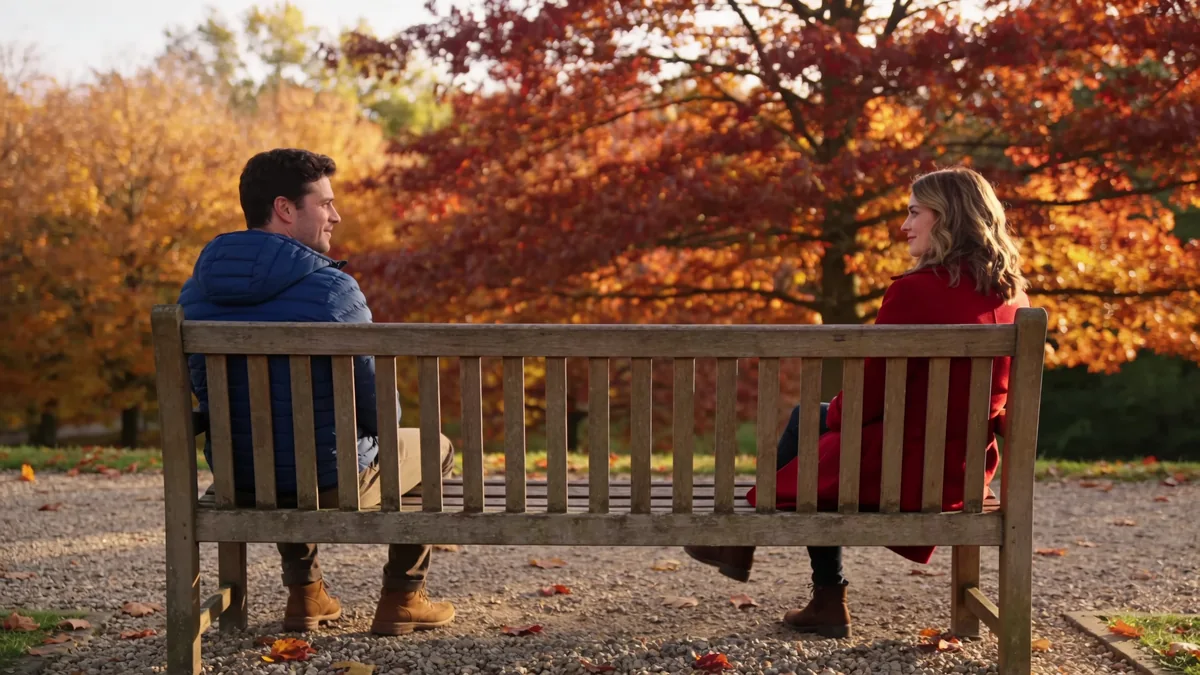
The original photo: two people sitting on a bench, autumn trees in the background.
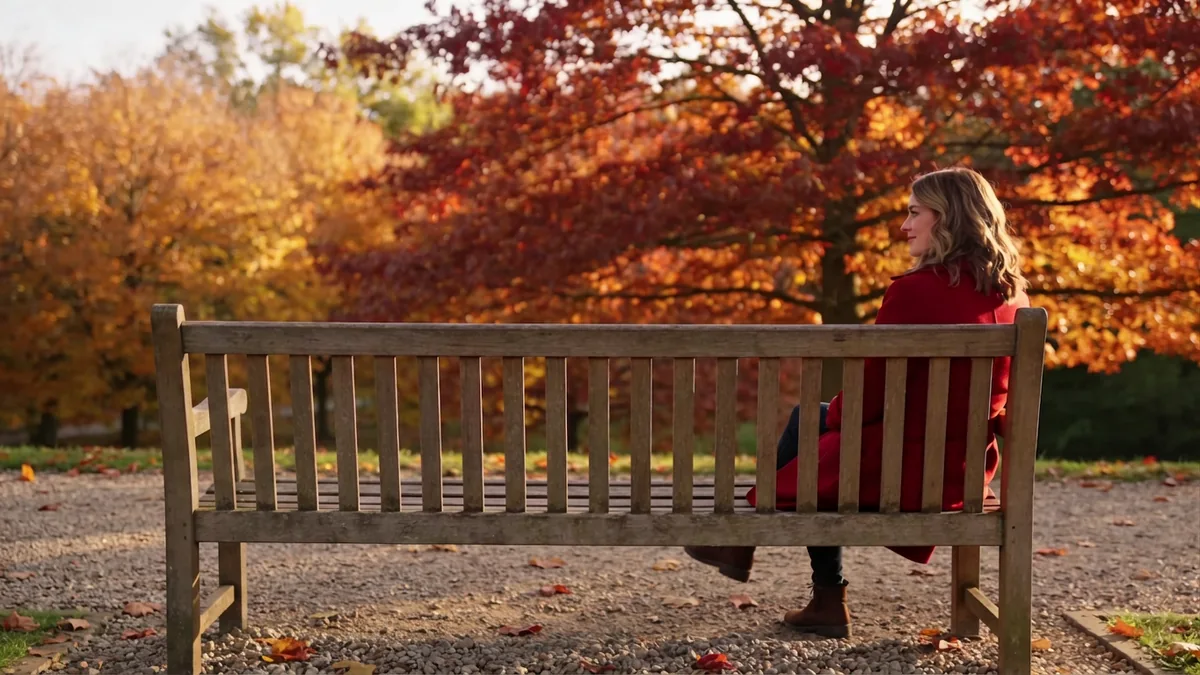
Same photo, one prompt: the man on the left is gone and the bench, path, and trees behind him are filled in naturally.
Upload an image, describe the target change, and refine the edit until it fits your use case.
Select the image you want to edit from your device. The AI editor works directly on your uploaded photo, so the result is specific to your image rather than a newly generated picture.
Quickly clean up photos, swap distracting backgrounds, or recolor elements to match brand aesthetics — without needing a designer or learning complex editing software.
Remove cluttered backgrounds, place products on clean or styled surfaces, and recolor product variants to create consistent, professional-looking listings at scale.
Fix that photobomber, remove a telephone wire, freshen up a portrait, or explore creative restyling of personal photos — all by just describing what you want in normal language.
Tell the AI exactly where in the image the change should happen — 'the person standing on the far right,' 'the lamp in the top-left corner,' or 'the sky above the rooftline.' Spatial context dramatically improves accuracy.
Instead of just saying 'remove the car,' say 'remove the car and fill the space with the cobblestone road continuing naturally.' Giving the AI a replacement instruction leads to more seamless results.
For recoloring or restyling, reference concrete descriptors: 'deep navy blue,' 'warm golden-hour light,' or 'gritty black-and-white film noir style.' Vague terms like 'make it nicer' give the model too little to work with.
If you only want one element changed, say so explicitly — 'change the background to a forest but keep the subject, lighting, and composition exactly the same.' This helps the model avoid unintended changes elsewhere.
If you need multiple changes — say, removing an object AND restyling the photo — try doing them in separate passes. Stacking too many instructions at once can cause the model to prioritize some edits over others.
If the first result is close but not quite right, describe only what needs fixing in your next prompt — 'the fill on the left side looks blurry, make it sharper and match the texture of the surrounding wall.' Iterating is usually faster than rewriting from scratch.
Review output quality, follow-up checks, and download expectations for AI image editing.
Most straightforward edits — background swaps, single-object removal on simple backgrounds, and recoloring clearly defined elements — typically complete in a few seconds and produce usable results on the first or second attempt. More complex edits like removing overlapping subjects or outpainting highly detailed borders may require a few iterations and still produce imperfect edges or fill textures. The AI works probabilistically, so the same prompt on the same image can yield slightly different outputs each run. Best input: a sharp image and an edit instruction that names the target area, replacement, what should stay unchanged, and the desired level of realism.
Example: Input: a product photo with a cluttered desk background. Output: the same product on a clean neutral surface with realistic shadow and no change to the product shape. Good for ecommerce cleanup, social assets, and fast visual corrections without manual masking.
Yes — the AI image editor works by modifying an existing image you provide. Upload your photo, describe the change you want, and the model applies your edit to that specific image.
Sign up free and put AI agents to work across your tasks, from quick jobs to complete end-to-end workflows, right in your browser, no setup needed.
Get started for free