Online sellers and product photographers
Quickly swap messy backgrounds for clean white or lifestyle settings, recolor product variants, and remove distracting props — without opening Photoshop or hiring a retoucher.
Edit existing photos with ChatGPT-style prompts: remove objects, change backgrounds, retouch, and restyle. Requires a paid plan — no free tier.
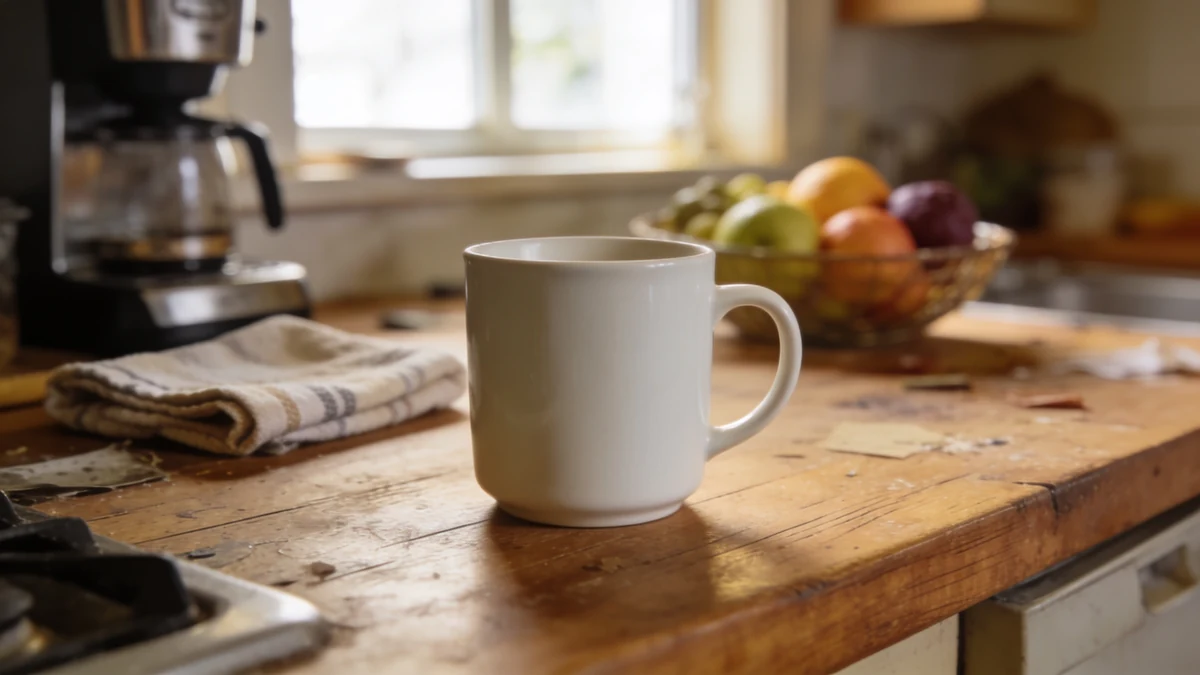
A coffee mug shot on a busy kitchen counter, with a coffee machine, fruit bowl, and towel in frame.
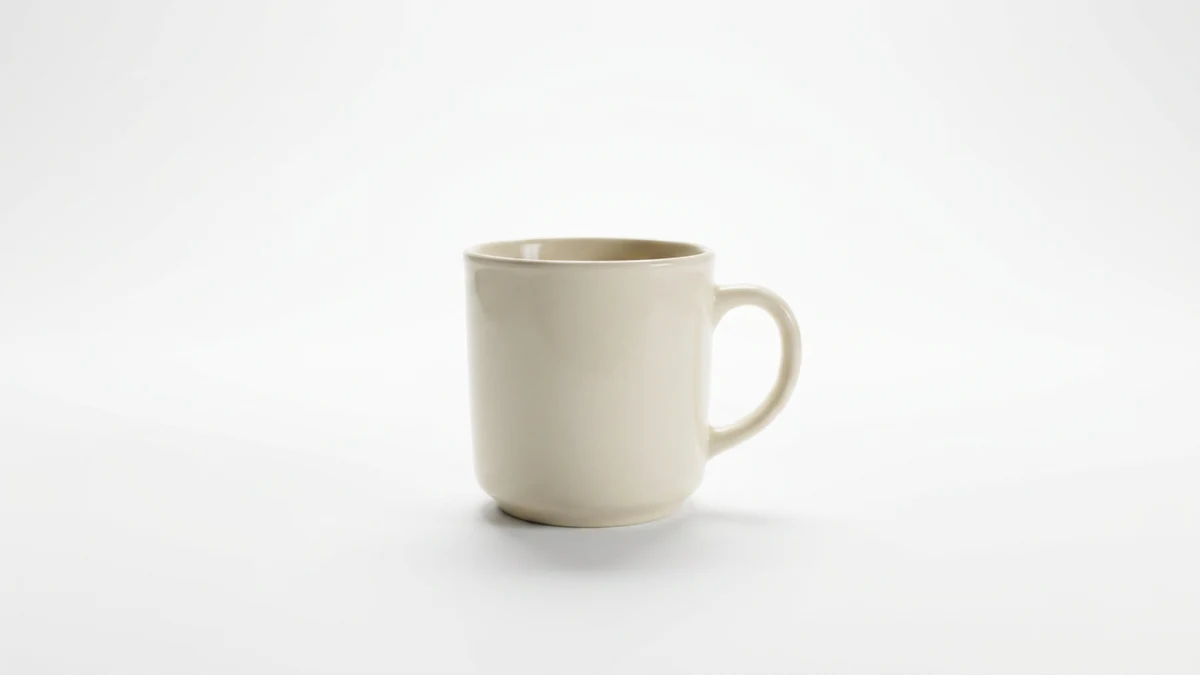
Same mug, same lighting and shadow — the background is swapped for a clean white studio backdrop.
Upload an existing photo, describe the exact edit, then refine the result with follow-up prompts.
Drop in any JPEG or PNG — a portrait, product shot, landscape, or everyday snapshot. The clearer and better-lit the original, the more precise the edit tends to be.
Quickly swap messy backgrounds for clean white or lifestyle settings, recolor product variants, and remove distracting props — without opening Photoshop or hiring a retoucher.
Refresh old photos with new color grades, extend images to fit different aspect ratios, or add and remove scene elements to match a campaign — all by describing the change in one sentence.
Fix a photo where someone wandered into the background, brighten a dark shot, or give a family portrait a cleaner backdrop — no editing experience or software subscription needed.
Say 'the red car on the left side' rather than 'the car'. Specificity helps the model target the right element, especially when a scene has multiple similar objects.
Instead of 'remove the background', try 'remove the background and replace it with a foggy autumn forest'. Telling the model what to fill the space with usually produces a more intentional result.
If you're restyling or replacing a background, mention the lighting quality — 'soft overcast daylight' or 'warm golden-hour side lighting' — so the new element blends with the subject rather than clashing.
Adding 'keep it photorealistic' or 'match the existing photo style' nudges the model away from an illustrated or over-processed look, which can otherwise creep into heavily edited images.
If you want a background swap AND skin retouching AND a color grade, try doing the background first, then the retouching in a second pass. Stacking too many changes in one prompt can dilute the quality of each.
If the first result is 90% there but has one odd shadow or a slightly off color, describe only that problem in a second instruction. Targeted corrections are faster than re-running the whole edit from scratch.
Review output quality, follow-up checks, and download expectations for AI photo editing.
Most practical ChatGPT-style photo edits - background replacement, object removal, product cleanup, recoloring, outpainting, and light retouching - produce usable results when the prompt names the target, location, replacement, and what should stay unchanged. Simple edits on sharp photos often work in one pass. Crowded scenes, precise facial changes, small text, reflective objects, and exact brand details may need follow-up prompts. Best input: a well-lit photo and a precise edit prompt that names the object or area to change, the replacement, and what must remain identical.
Example: Input: a product photo of a brown leather wallet on a kitchen counter. Prompt: 'Remove the kitchen counter background and replace it with a clean light-gray studio surface. Keep the wallet sharp, preserve the leather texture, and add a soft realistic shadow underneath.' Output: a studio-style product image with the original wallet preserved, the counter replaced, and the lighting adjusted for an e-commerce listing.
No — this is a ChatGPT-style photo editor that uses the same class of GPT-image-2.5-sunburst models associated with that experience, but it is an independent tool and not a product of OpenAI or ChatGPT itself.
Sign up free and put AI agents to work across your tasks, from quick jobs to complete end-to-end workflows, right in your browser, no setup needed.
Get started for free