Couples planning a wedding
Preview dress silhouettes, suit styles, or venue themes before shopping or booking a designer, without committing to anything yet.
Turn your photo into an AI-generated wedding photo — explore styles before the big day. Requires a paid plan — no free tier.
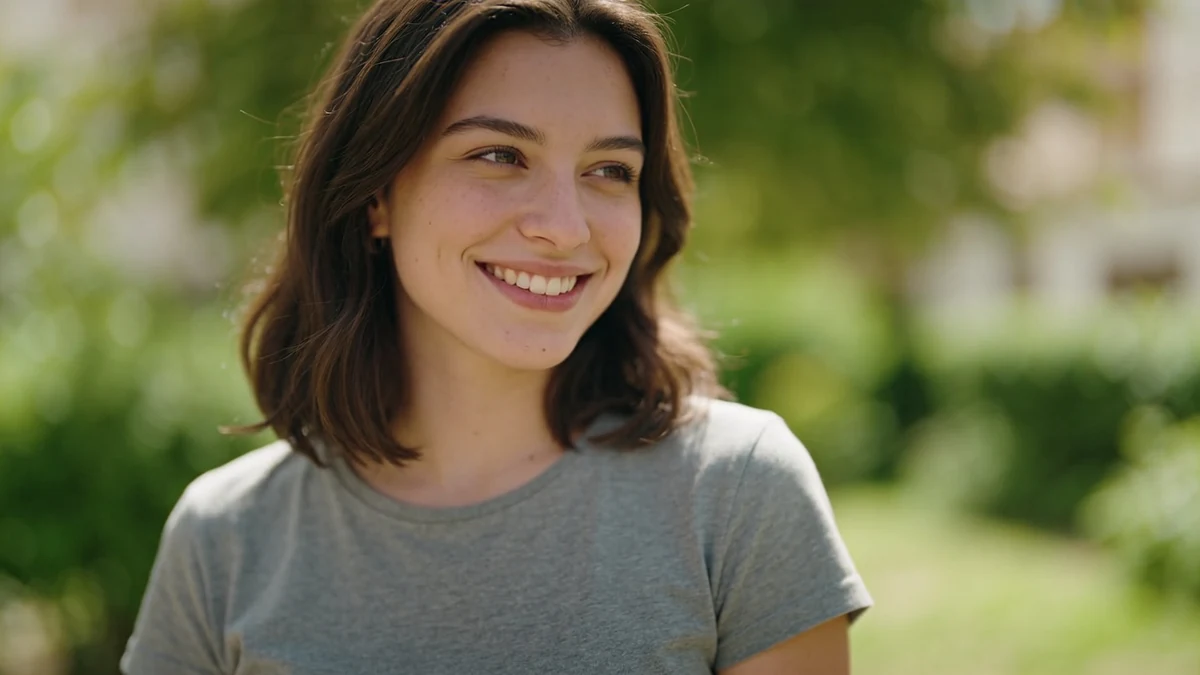
A plain outdoor portrait, used only to preview how she might look on the big day.
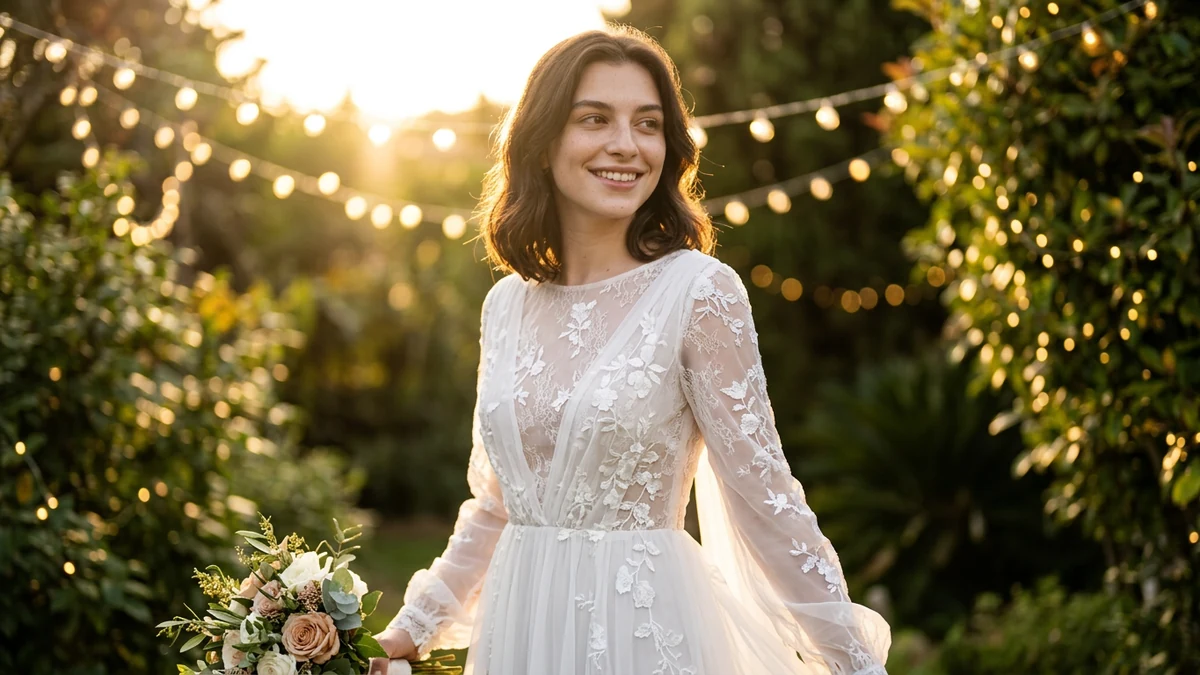
Same face, same hair — restyled into a lace gown in a garden with string lights, for exploring looks before shopping or booking.
Upload a clear source photo and describe wedding attire, venue, lighting, and style.
Provide a clear, front-facing photo of yourself — or one photo of each person if you want you and your partner both in the scene.
Preview dress silhouettes, suit styles, or venue themes before shopping or booking a designer, without committing to anything yet.
Explore rustic, beach, vintage, or winter wedding looks for inspiration boards, mood boards, or just for fun.
Generate visual examples of different wedding aesthetics for blog posts, social content, or style guides.
A front-facing, well-lit photo with your face fully visible gives the most recognizable result. A full-body photo helps if you're picturing a specific dress or suit silhouette.
'Flowing lace gown' or 'classic black tuxedo' gives the model a clear target — more specific than just 'wedding outfit'.
Splitting 'garden with string lights' from 'lace gown' helps the model balance both elements instead of favoring one.
Vintage 1950s, modern minimalist, or rustic barn each produce a distinctly different look — name the one you're picturing.
If you're including a partner, describe the scene once for both rather than giving each person a separate, conflicting style.
Since this is for exploring options, try two or three different styles on the same photo before deciding what you like.
Review output quality, follow-up checks, and download expectations for AI wedding photos.
For a clear, front-facing photo and a specific style request, the tool typically returns a wedding-style portrait within a minute or two. Simple, well-defined requests — a dress style plus a venue type — tend to come out most consistently; multi-person scenes or very intricate dress details (lace patterns, embroidery) are less reliable and may need a couple of attempts. Best input: a clear source portrait plus details for attire, venue, era or aesthetic, lighting, framing, and whether the goal is realistic or inspirational.
Example: Input: one clear portrait and the prompt 'modern outdoor wedding portrait, ivory dress, garden venue, soft sunset lighting'. Output: a wedding-style concept image that explores outfit, venue, and mood. Good for inspiration boards, invitations, and playful previews rather than formal keepsakes.
An AI-generated image that places you — from your uploaded photo — into a wedding-style scene, with the dress, venue, and lighting based on your description. It's a stylized composite, not a real wedding photo.
Sign up free and put AI agents to work across your tasks, from quick jobs to complete end-to-end workflows, right in your browser, no setup needed.
Get started for free