Back

PDF to Text

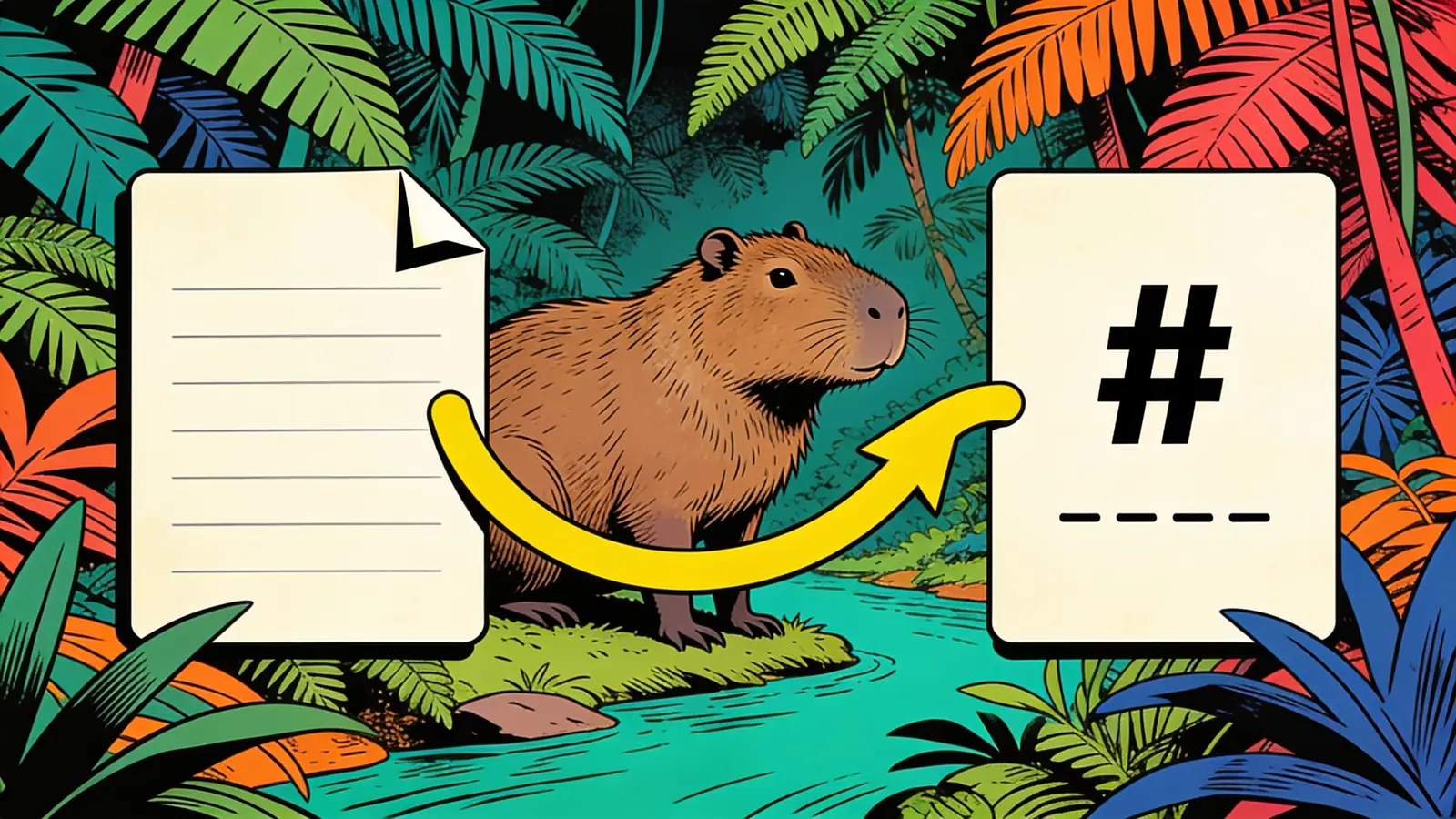
Pull the text out of a PDF as plain text. Happycapy extracts clean, editable text from your PDF — including scanned pages via OCR — so you can copy, search, or reuse it. Convert one file or a whole folder. Free to start.

How PDF to text extraction works

Extract selectable text from digital PDFs or use OCR when the PDF is scanned.

1

Say what to extract

Pick an example or say all text, or just specific pages.

2

Attach your PDF

Continue into Happycapy and drop in your file — including scans, or a whole folder.

3

Let Happycapy extract

It reads the text — using OCR for scanned pages — and returns clean, editable text.

4

Download your text

Copy it or save it as a .txt file to reuse anywhere.

Who extracts text from PDFs

Useful for research, quoting, search, data entry, and moving locked text into editable files.

Researchers and students

Pull quotes, data, and references out of PDFs without retyping.

Developers and analysts

Extract text to feed into scripts, search, or data pipelines.

Office workers

Copy text from locked or scanned PDFs into emails and documents.

Tips for cleaner PDF text extraction

Scanned status, page range, paragraph preservation, and output format shape the result.

01

Flag scanned PDFs

Mention if the PDF is scanned so Happycapy uses OCR rather than direct extraction.

02

Pick the pages

"pages 1 to 3" extracts text from just the part you need.

03

Keep paragraphs

Ask to preserve paragraph breaks for readable output.

04

Plain text or structured

Request a clean .txt dump, or light structure like headings kept.

05

Proofread OCR output

Blurry scans may have small errors — a quick review helps.

06

Batch a folder

Extract text from many PDFs at once into separate files.

What to expect from PDF to text

Review output quality, follow-up checks, and download expectations for PDF to text.

For native/digital PDFs, text extraction is typically near-perfect (95–100% accuracy) and instant. For scanned PDFs requiring OCR, expect 85–98% character accuracy depending on scan quality, font clarity, and language — meaning a 1,000-word page may still contain 5–20 errors. Best input: a digital PDF when possible, or a scanned PDF with a note that OCR is needed, plus page ranges and whether headings or paragraph breaks should be preserved.

Example: Input: a 30-page research PDF with selectable text and a few scanned appendix pages. Output: clean extracted text with paragraph breaks preserved, plus OCR text for scanned pages when needed. Good for quoting, searching, summarizing, and moving text into notes or scripts.

Extraction limits to know

Review this section when source details involve: Scanned status, page range, paragraph preservation, and output format shape the result.

  • OCR accuracy drops significantly on low-resolution scans (below 150 DPI), handwritten text, or pages with heavy background noise — expect 70% or worse accuracy in these cases.
  • Formatting is not preserved: tables, columns, bullet layouts, and multi-column text are typically linearized into plain prose, often scrambling reading order.
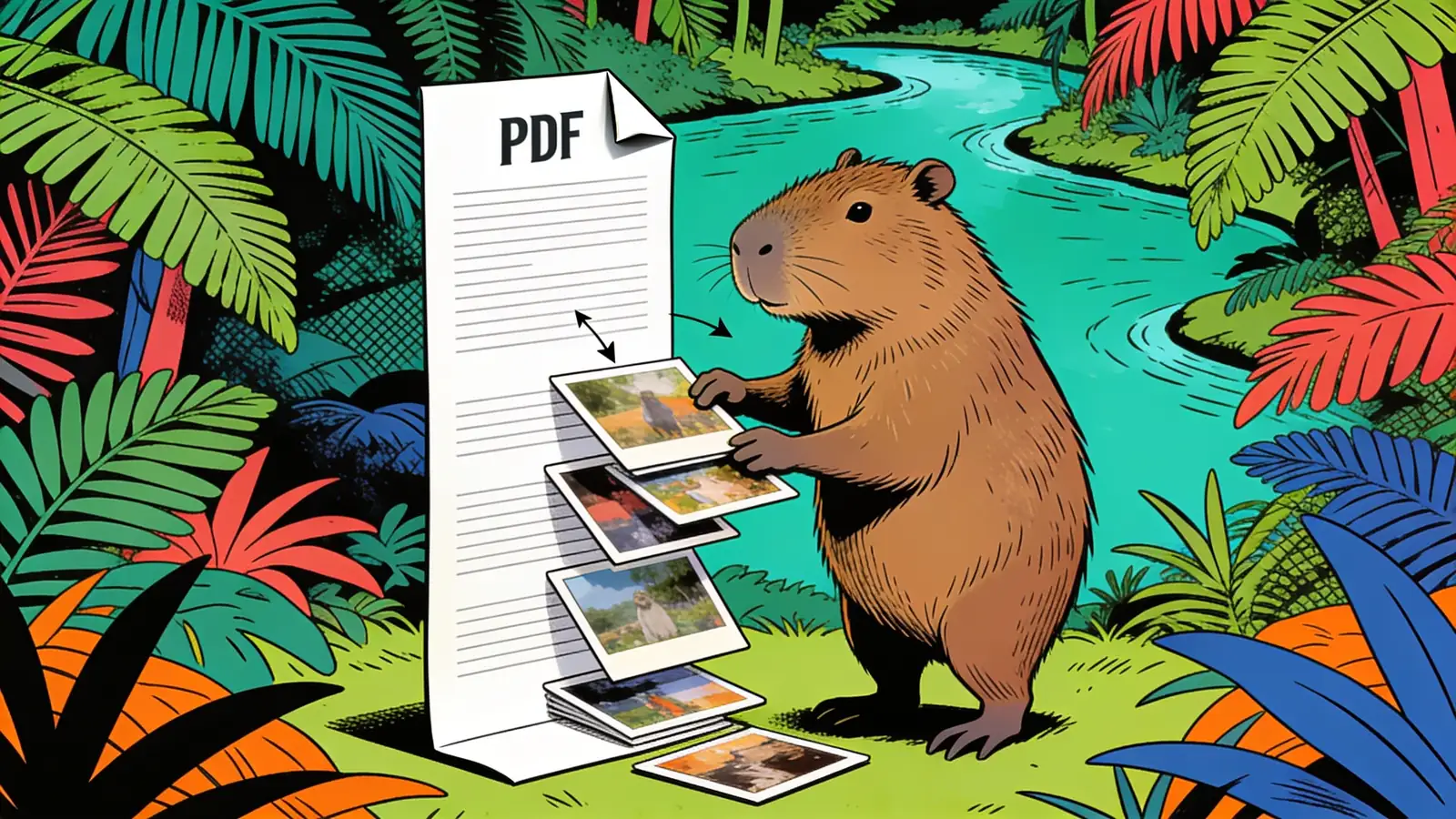
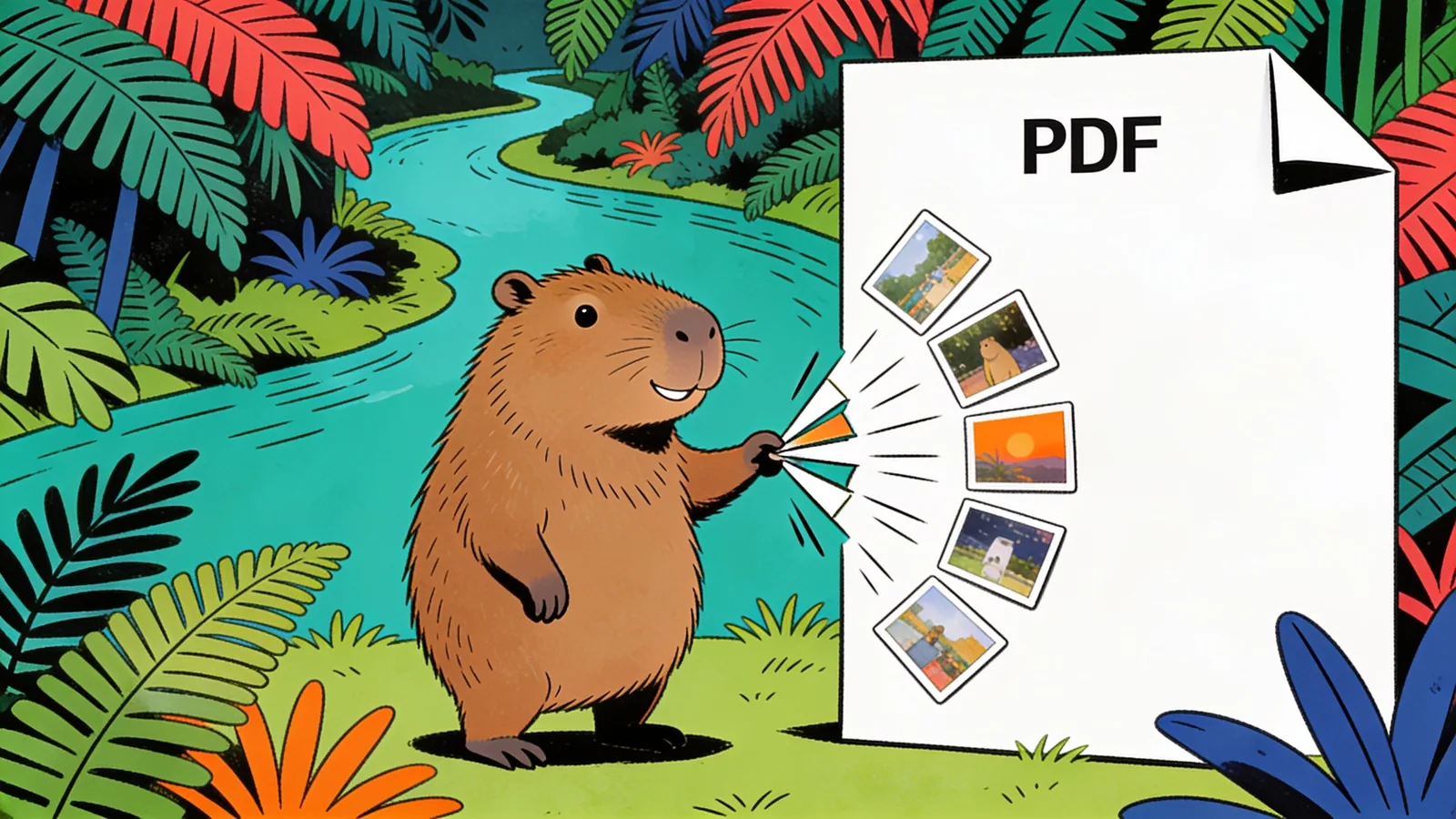
  • Images, diagrams, charts, and embedded graphics within the PDF are completely discarded — only text content is extracted.

Frequently asked questions

How do I extract text from a PDF without installing anything?

Paste or upload your PDF directly in the browser — the extraction runs in the cloud, so no desktop software, plugins, or account setup is needed before you begin.

Can it extract text from a scanned PDF?

Yes. Scanned PDFs are image-based, and the tool applies OCR to recognise characters and return editable text. Crisp, high-resolution scans (300 dpi or above) typically yield noticeably cleaner results than low-quality phone photos.

Will the extracted text preserve my paragraphs and reading order?

In most cases, yes — the tool reconstructs reading order and retains paragraph breaks so the output is coherent without manual rearranging. Heavily formatted multi-column layouts, such as academic journals, may occasionally need a quick tidy-up.

Can I pull text from specific pages rather than the whole document?

Yes. Specify a range — for example 'extract pages 4 through 9' or 'just the last two pages' — and only those pages are processed, which is handy for large PDFs where you only need a section.

What exactly do I receive as output?

You get plain UTF-8 text, ready to copy-paste into any editor or save as a .txt file. If you need a different structure — one paragraph per line, or headings separated from body text — ask and the output will be shaped accordingly.

Can I process a batch of PDFs in one go?

Yes. Drop multiple PDF files together and the tool extracts text from each one in a single pass, returning a separate plain-text result per file — useful when working through a set of reports or chapters.

How well does it handle PDFs with mixed content — text and images on the same page?

Happycapy separates the selectable text layer from embedded images on mixed pages, extracting the text portion cleanly. Image captions within the text flow are typically captured; purely decorative graphics are skipped so they don't clutter the output.

Ready to create?

Sign up free and put AI agents to work across your tasks, from quick jobs to complete end-to-end workflows, right in your browser, no setup needed.

Get started for free