PNG to PDF
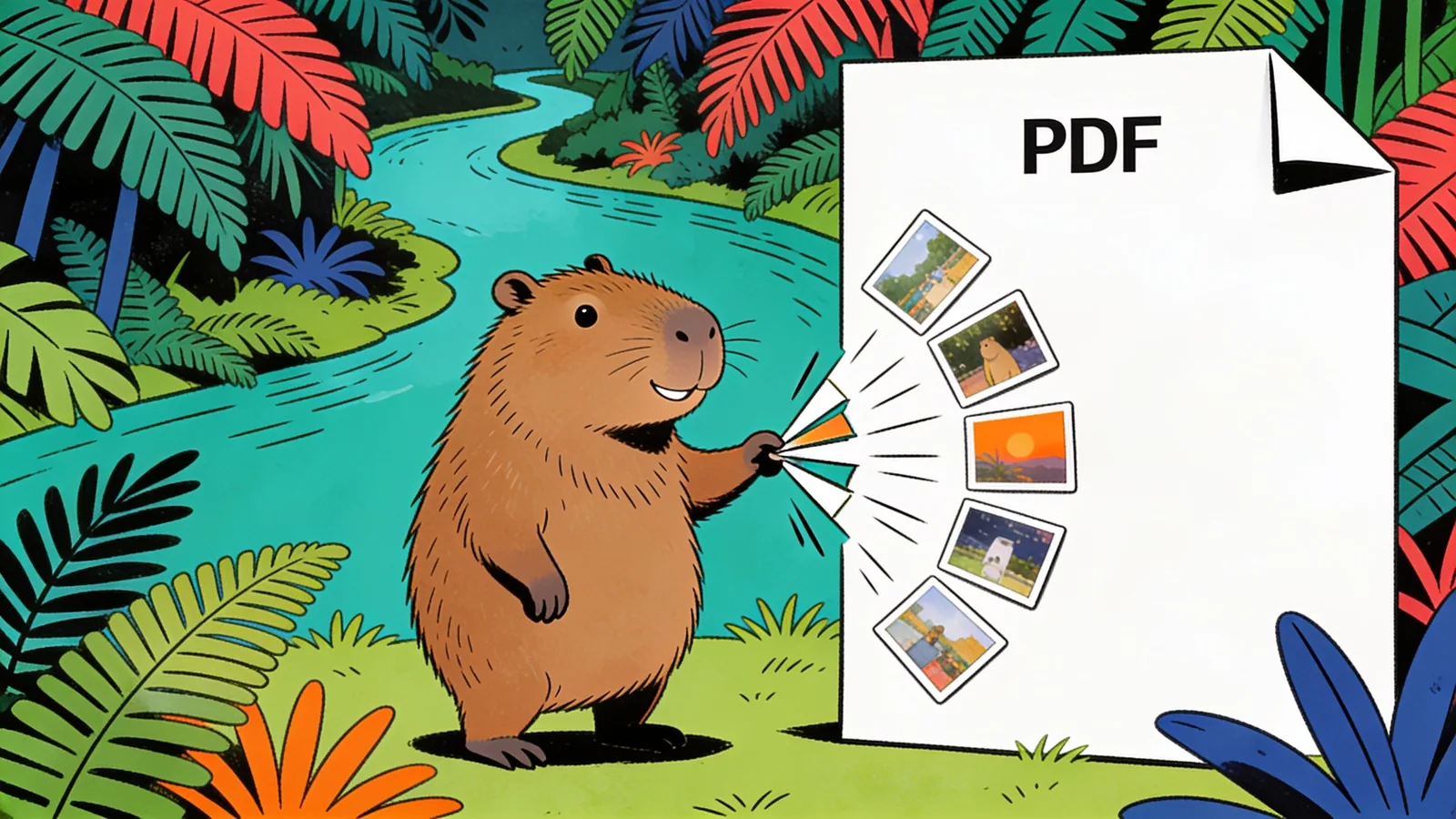
Turn one or many PNG images into a clean PDF. Drop in your files, set the order and page size, and Happycapy combines them at full quality — no compression artifacts. Need a whole folder converted or merged with other docs? It handles that too. Free to start.
How it works
Describe the output
Pick an example or say how you want your PNGs combined — order, page size, one file or one image per page.
Attach your PNGs
Continue into Happycapy and drop in one image or many. Reorder them however you need.
Let Happycapy build the PDF
It places each PNG at full resolution on your chosen page size and merges them into one document.
Download your PDF
Review the result and download a clean PDF, ready to share or print.
Who is this for
Students and office workers
Combine screenshots, scans, or photos of notes into one PDF to submit or email.
Designers and creators
Deliver PNG mockups and exports as a single, polished PDF for clients.
Anyone archiving files
Turn receipts, certificates, or saved images into one tidy PDF you can store and find later.
Six prompt-engineering tips that move the needle
Small changes in how you write a prompt make the biggest difference in output.
State the order
Say "in the order I uploaded" or "alphabetical" so pages land the way you expect.
Choose the page size
A4, Letter, or "fit to image" — name it so the layout matches your use.
One PDF or one each
Decide up front: merge everything into a single PDF, or output one PDF per image.
Keep full resolution
Ask to keep original size for printing, or fit-to-page if you want uniform pages.
Set orientation and margins
Portrait vs landscape and small vs no margins change how each image sits on the page.
Batch a whole folder
Hand over a folder and convert every PNG in a single instruction.
What to expect
Each PNG is placed on its own PDF page at full image quality with no lossy compression, so file sizes typically increase 10–30% compared to the source PNGs since PDF wraps the raw image data with document overhead. Converting 10 standard PNG screenshots typically takes under 5 seconds.
Example: A folder of 8 PNG scans totaling 4.1 MB produces a PDF of roughly 4.5–4.8 MB — all pages in order, each image filling its page at original resolution.
Good to know
- Output file size will be larger than your source PNGs, not smaller — this tool converts and merges, it does not compress or optimize images.
- Very large PNGs (e.g. 50+ MB each or batches of 100+ files) may hit upload or processing limits depending on your plan tier.
- The tool embeds images as raster data, so text within your PNGs is not selectable or searchable in the resulting PDF — for OCR you'd need a separate step.
Frequently asked questions
How do I convert PNG to PDF for free?
Upload your PNG files, describe how you want them arranged (order, page size, margins), and the tool returns a finished PDF — no sign-up required to start. The converter processes files entirely in your browser session, so nothing is stored on a server after your download.
Can I combine multiple PNG images into one PDF?
Yes — there is no hard cap on the number of PNGs you can merge. Each image lands on its own page in the order you specify, making it straightforward to bundle dozens of screenshots, scanned pages, or design exports into a single shareable document.
Will converting PNG to PDF reduce image quality?
Not in typical use. Each PNG is embedded at its original pixel resolution rather than re-compressed, so the output PDF should look as sharp as the source. Unlike JPEG-based workflows, PNG-to-PDF conversion avoids lossy artifacts because PNGs are already lossless.
Can I set a specific page size and orientation for the PDF?
Yes. You can choose standard sizes (A4, US Letter, A3) or 'fit-to-image', which sizes each page exactly to match that PNG's dimensions — useful for mixed-resolution image sets. Portrait and landscape orientation are both supported, and you can set custom margin widths as well.
Can I batch-convert an entire collection of PNGs at once?
Yes. Drop in a batch of files and specify whether you want them merged into one PDF or exported as individual PDFs — one per image. The tool processes all of them in a single pass, so converting 50 scanned pages takes roughly the same effort as converting one.
What happens to transparent areas in a PNG when it becomes a PDF?
PDF pages require a solid background, so transparent regions default to white when embedded. If you need a different backdrop — grey, black, a brand color — include that in your instructions and the background will be filled accordingly before the image is placed.
Does the page order matter, and can I change it before generating the PDF?
Page order is fully under your control. Specify the sequence by filename, number, or description before generating, and the PDF will reflect that arrangement. If you realize the order is wrong after a first attempt, simply re-run with a corrected sequence — the source files are not altered.
Ready to create?
Sign up free and put AI agents to work across your tasks, from quick jobs to complete end-to-end workflows, right in your browser, no setup needed.
Get started for free