PDF to PNG
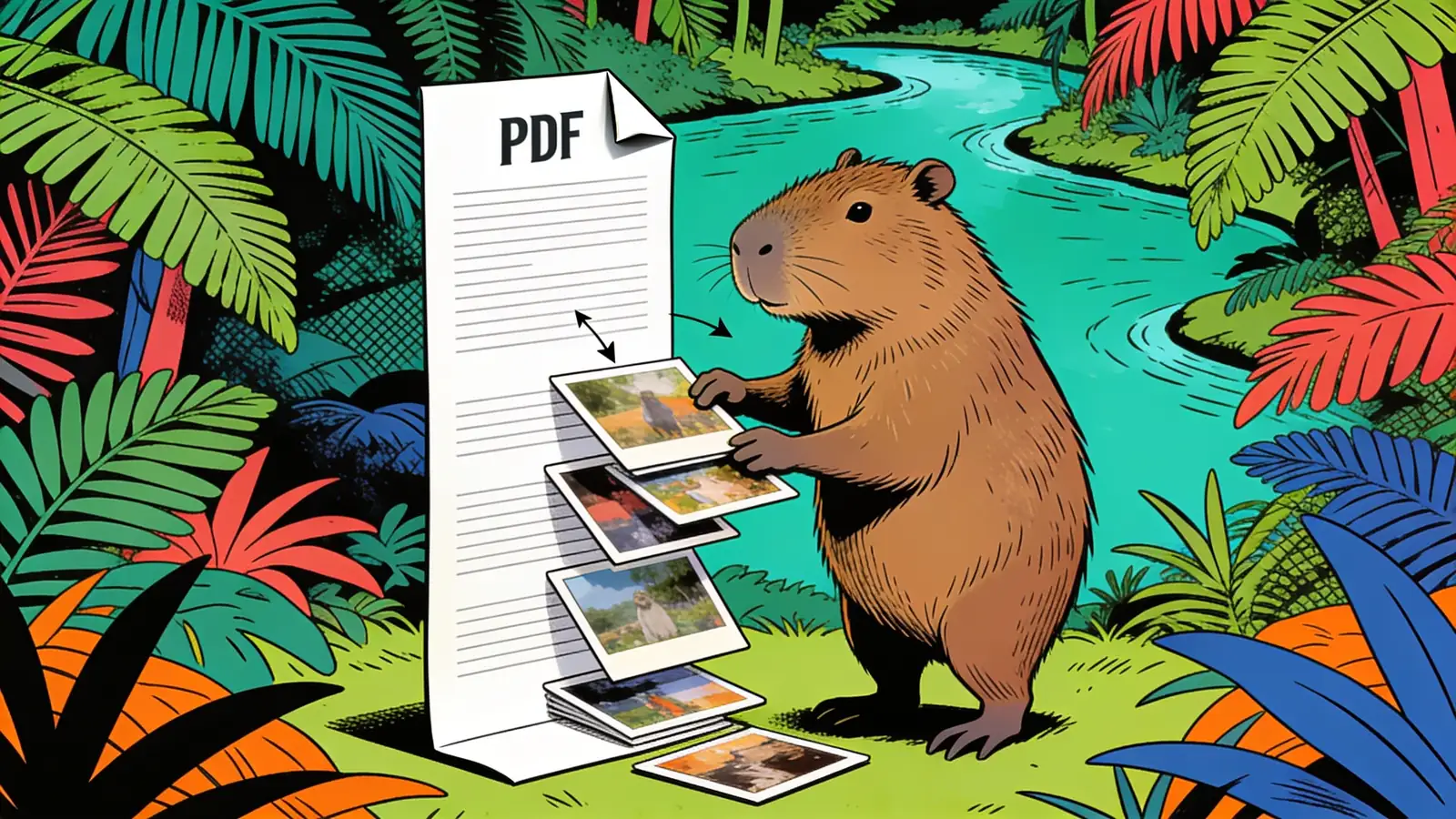
Export PDF pages as PNG images. Choose all pages or a specific range, set the resolution you need, and Happycapy renders sharp, lossless PNGs — ready for slides, web, or editing. Got many PDFs to convert at once? It handles batches too. Free to start.
How it works
Set pages and resolution
Pick an example or say which pages you need and at what DPI.
Attach your PDF
Continue into Happycapy and drop in your file — or a whole folder of PDFs.
Let Happycapy render
It rasterizes each page cleanly into a PNG at the resolution you chose.
Download your PNGs
Grab one image per page, ready for slides, the web, or editing.
Who is this for
Marketers and designers
Pull PDF pages into PNGs for decks, social posts, and thumbnails.
Developers and writers
Turn PDF pages into images to embed in docs, issues, or web pages.
Teachers and students
Convert handouts or slides to PNGs for easy sharing and annotation.
Six prompt-engineering tips that move the needle
Small changes in how you write a prompt make the biggest difference in output.
Set the DPI
"300 DPI" for print, "72 DPI" for web — resolution drives sharpness and file size.
Pick specific pages
"pages 2-5" or "first page only" converts just what you need.
Transparent vs white
Say whether you want a transparent or solid background behind each page.
One PNG per page
By default each page becomes its own image; ask to merge if you would rather not.
Name the output
Give a naming pattern so the files sort the way you want.
Batch multiple PDFs
Drop a folder and convert every PDF in a single pass.
What to expect
Most PDF pages convert to PNG with accurate text and vector rendering; at 150 DPI a typical A4 page produces an image around 1240×1754 px, while 300 DPI yields ~2480×3508 px. File size per page typically ranges from 200 KB to 2 MB depending on content density and chosen resolution.
Example: A 12-page PDF report (2.4 MB total) exported at 150 DPI produces 12 PNG files averaging ~350 KB each (~4.2 MB combined) — suitable for web use. Bumping to 300 DPI roughly quadruples file sizes to ~1.4 MB per page, better for print or editing.
Good to know
- PDFs with embedded fonts that aren't subset or are non-standard may render text slightly differently than in the original viewer — always spot-check text-heavy pages.
- Very large or complex PDFs (100+ pages, dense vector illustrations) can be slow to process and may time out or require splitting into smaller batches.
- PNG output is lossless but does not preserve interactive elements, hyperlinks, form fields, or layers from the original PDF — those are flattened into pixels.
Frequently asked questions
How do I convert a PDF to PNG without installing software?
Open the tool in your browser, upload your PDF, specify your page range and resolution, and PNG files come back ready to download — no desktop app or plugin needed. The whole process typically takes a few seconds for a standard document.
Can I export every page of a PDF as a separate PNG file?
Yes — one PNG is produced per page by default, so a 20-page PDF yields 20 numbered image files. If you only need a subset, just specify a range like "pages 3–7" and the rest are skipped.
What DPI should I choose for my PNG images?
For print or high-res editing, 300 DPI is a reliable choice; for web thumbnails or slides, 96–150 DPI keeps file sizes manageable without visible blur. The tool accepts any DPI value you enter, so you can dial in exactly what a print shop or design brief requires.
Can I convert only specific pages rather than the whole PDF?
Yes. Entering a range such as "pages 4 to 9" or "only page 1" limits the export to those pages, which is useful for extracting a single chart or cover slide without processing the entire file.
How does batch conversion work for multiple PDFs?
Upload several PDF files together and the tool processes them in one pass, organizing each document's pages into separate, clearly labeled PNG sets in the output — practical when you need to convert an entire folder of reports at once.
How sharp will the PNG look compared to the original PDF?
PNG is lossless, so pixel-level quality depends mainly on the DPI you choose rather than compression artifacts. Vector text and graphics rendered at 300 DPI typically look crisp at normal viewing sizes; very fine detail in complex diagrams may benefit from going higher.
What makes this tool different from just taking a screenshot of a PDF?
Screenshots capture whatever resolution your screen happens to be — often 72–96 effective DPI — and can include UI chrome or misaligned crops. This tool rasterizes directly from the PDF's vector data at the exact DPI you set, producing clean, full-bleed images suitable for print, editing, or embedding in presentations.
Ready to create?
Sign up free and put AI agents to work across your tasks, from quick jobs to complete end-to-end workflows, right in your browser, no setup needed.
Get started for free