Back

PDF to Markdown

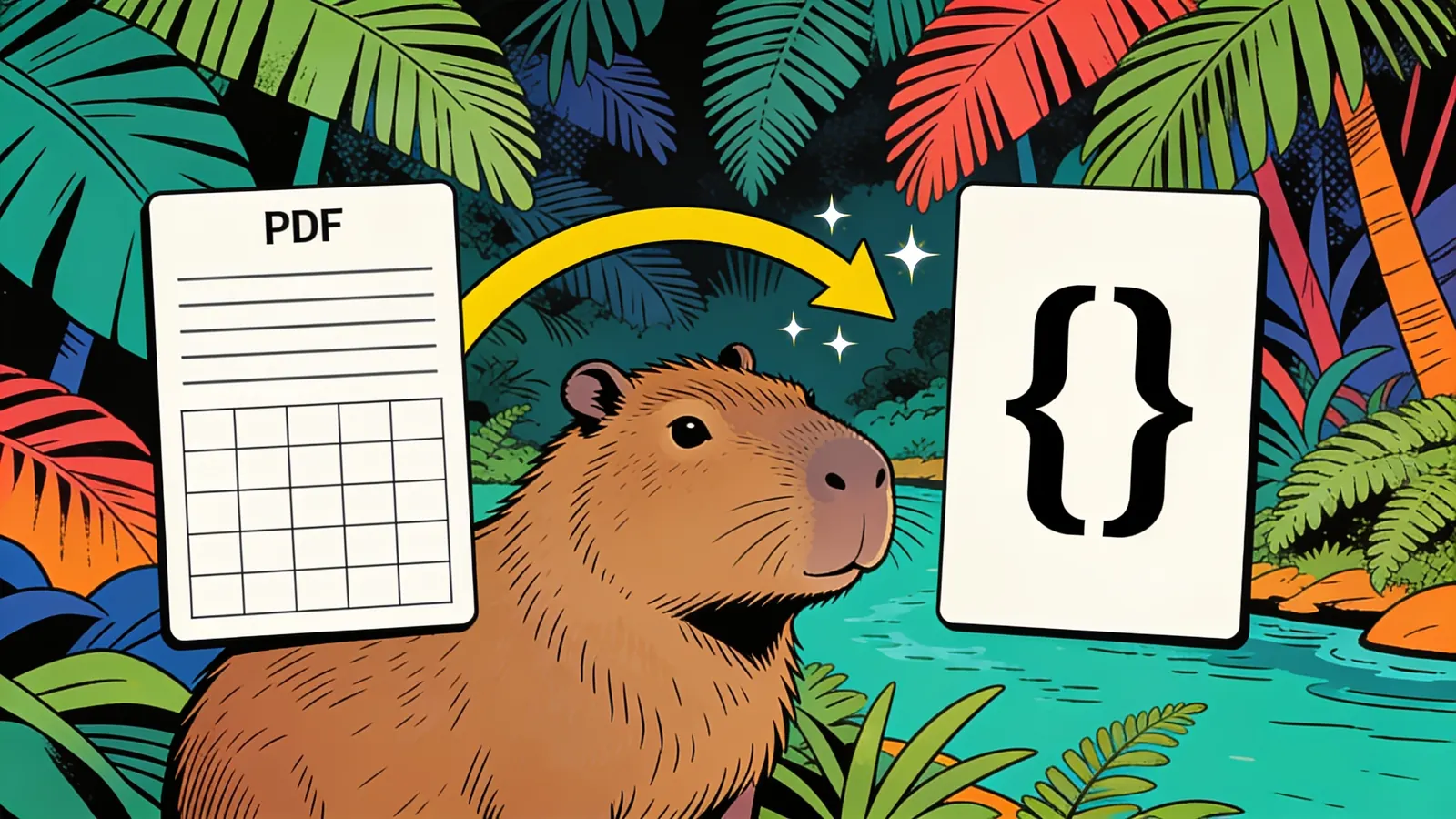
Upload a PDF and Happycapy returns clean Markdown — headings, bullet lists, tables, and basic formatting converted into plain-text markup. Handy for feeding a document into an AI tool, a static site, or a notes app that prefers Markdown over PDF. Free to start.

How PDF to Markdown works

Upload a PDF and get back clean Markdown with headings, lists, and tables preserved.

1

Upload your PDF

Provide the document — a report, article, or documentation you want in Markdown.

2

Note what to preserve

Mention specific sections, tables, or formatting you care about, or ask for the whole document.

3

The tool converts to Markdown

Headings, lists, and tables are rendered as Markdown syntax, ready to paste or save.

4

Copy or download

Use the Markdown in a static site, notes app, or AI tool right away.

Who needs PDF to Markdown

Useful for developers, technical writers, and anyone feeding documents into AI tools or static sites.

Developers and technical writers

Turn a PDF spec or report into Markdown for a docs site, README, or wiki.

Anyone feeding documents into AI tools

Markdown is easier for AI assistants to parse cleanly than raw PDF text.

Note-takers

Bring a PDF into a Markdown-based notes app without retyping the structure.

Tips for clean PDF to Markdown conversion

Source PDF quality, layout complexity, and target platform determine how clean the Markdown comes out.

01

Say what to preserve

Call out headings, lists, and tables you care about most.

02

Mention your target platform

Static site generators like Docusaurus or MkDocs have slightly different Markdown conventions.

03

Flag multi-column layouts

Reading order can get scrambled — mention if your PDF has columns.

04

Ask to strip images

If you only need text, say so — images don't translate cleanly to Markdown.

05

Check tables afterward

Simple tables convert well; complex merged-cell tables need a manual look.

06

Prefer digital PDFs

Scanned PDFs rely on text recognition and are less reliable than digital ones.

What to expect from PDF to Markdown

Review output quality, follow-up checks, and download expectations for PDF to Markdown.

For a clean, digitally-generated PDF with standard headings, lists, and simple tables, the conversion is fast and the structure comes through accurately. Reports, documentation, and articles convert well. Multi-column layouts, scanned pages, and complex tables are the main sources of imperfect results and are worth a manual check.

Example: A user uploaded a 5-page PDF report and asked to keep all headings, bullet lists, and tables. The tool returned Markdown with '#' headings matching the report's section titles, '-' bullet lists preserved, and a simple two-column table rendered as proper Markdown table syntax with aligned pipes.

PDF to Markdown notes

Review this section when source details involve: Source PDF quality, layout complexity, and target platform determine how clean the Markdown comes out.

  • Multi-column layouts don't map cleanly to Markdown's single linear flow — reading order may need manual correction.
  • Scanned PDFs rely on text recognition and are less reliable than digitally-generated ones.
  • Complex tables with merged cells or nested structures may need manual cleanup after conversion.

Frequently asked questions

What does a PDF to Markdown converter do?

It reads a PDF and outputs the same content as Markdown — a lightweight plain-text markup where headings, bold text, lists, and tables are written with simple symbols instead of PDF's fixed layout. This makes the content easy to paste, edit, or feed into other tools.

Why convert a PDF to Markdown instead of plain text?

Markdown preserves structure — headings stay headings, bullet lists stay lists, tables stay tables — so the converted document is far more usable than a flat text dump. It's also the preferred input format for many AI tools, static site generators, and note-taking apps.

Are tables converted correctly?

Simple, well-structured tables convert into Markdown table syntax reliably. Complex tables with merged cells or unusual layouts may need manual cleanup, since Markdown's table format is simpler than what a PDF can represent.

What happens to images and formatting like colors?

Markdown doesn't support colors, fonts, or precise layout, so those are dropped. Images can be referenced as Markdown image links if you want a placeholder, or omitted entirely if you just want the text.

Can I use this for AI tools that accept Markdown?

Yes — that's a common use. Many AI assistants and knowledge bases handle Markdown better than raw PDF text, so converting first can give cleaner, more structured results when you paste the document in.

Does it work on scanned PDFs?

It works best on digitally-generated PDFs with selectable text. Scanned PDFs rely on text recognition, which is less accurate — review the output carefully if your source is a scan rather than a digital document.

What if my PDF has a complex multi-column layout?

Multi-column layouts (like some academic papers or newsletters) can be tricky, since Markdown reads as a single linear flow. The reading order may not always match the original columns — check the result and reorder manually if needed.

Ready to create?

Sign up free and put AI agents to work across your tasks, from quick jobs to complete end-to-end workflows, right in your browser, no setup needed.

Get started for free