Business analysts and report writers
Quickly convert exported data dumps from Excel, Google Sheets, or databases into clean, shareable PDF reports without manually reformatting every column in a word processor.
Turn raw CSV data into a polished, print-ready PDF in seconds.
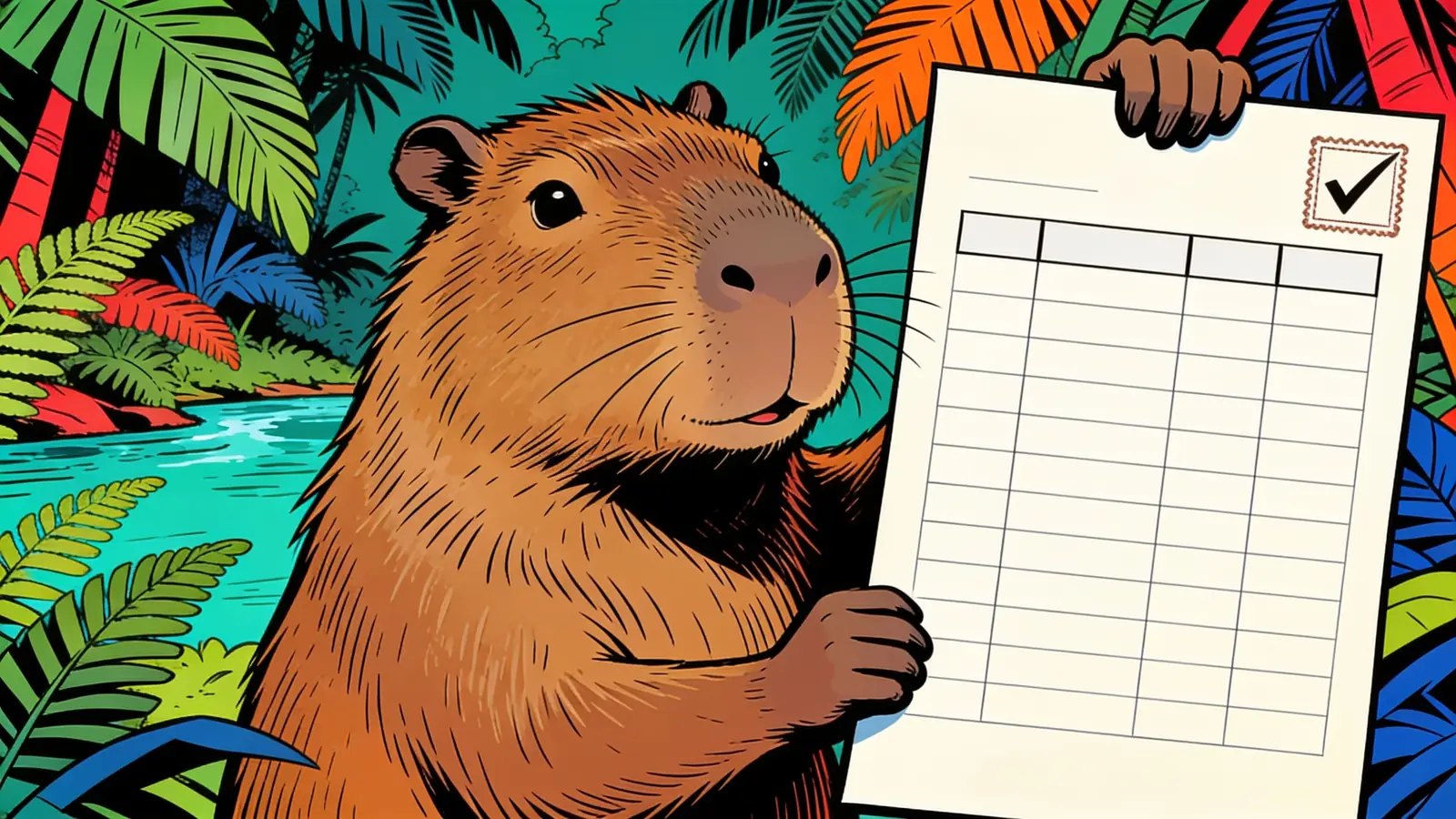
Paste CSV data and describe formatting so rows and columns become a printable report.
Copy the contents of your CSV file — headers and all — and paste them directly into the prompt field. No file upload required; raw text works perfectly.
Quickly convert exported data dumps from Excel, Google Sheets, or databases into clean, shareable PDF reports without manually reformatting every column in a word processor.
Turn invoices, inventory lists, or payroll exports into professional-looking printed documents without needing a full accounting or design suite.
Format survey data, grade sheets, or research tables into readable handouts or appendices for papers and presentations — consistently styled and page-break-aware.
If your CSV uses semicolons, tabs, or pipes instead of commas, say so in the first line of your prompt. This prevents misaligned columns caused by the wrong delimiter assumption.
Ask for number and currency columns to be right-aligned so decimal points line up visually. Example: 'right-align the Price and Quantity columns.' This makes tables far easier to scan.
For wide CSVs with 8+ columns, request landscape orientation to avoid cramped or clipped columns. For narrow tables (2–4 columns), portrait usually looks more professional.
For multi-page tables, include 'repeat column headers on each new page' in your prompt. Without this, readers on later pages lose the context of what each column represents.
If rows should be grouped by category or sorted alphabetically before formatting, say so explicitly — e.g., 'sort by the Region column, then group rows with a subtotal row per region.'
If your CSV has empty cells or mixed date formats, flag it: 'some cells in the Date column may be blank — leave them empty rather than filling in a placeholder.' This prevents the AI from inventing data.
Review output quality, follow-up checks, and download expectations for CSV to PDF.
Most CSV-to-PDF conversions covering up to 200 rows and 10 columns produce a well-structured table in one or two attempts. Complex formatting requests — nested grouping, conditional row colors — may need one or two prompt refinements to get right. Best input: CSV data with headers, delimiter details, and formatting preferences for page orientation, column widths, sorting, grouping, and repeated headers.
Example: Input: a CSV of quarterly expenses with Category, Vendor, Date, Amount, and Notes columns. Output: a landscape PDF table with right-aligned currency values, repeated headers, grouped categories, and page breaks that do not split rows awkwardly. Good for printable reports and client attachments.
Most standard CSV formats work — comma-delimited, semicolon-delimited, and tab-separated files. If your file uses a non-standard delimiter, mention it in your prompt (e.g., 'fields are separated by semicolons') and the formatter will adjust accordingly.
Sign up free and put AI agents to work across your tasks, from quick jobs to complete end-to-end workflows, right in your browser, no setup needed.
Get started for free