Complete Data Analysis Automation Guide for Modern Data Analysts
Connect Excel and CSV files to an agent that runs Python, builds dashboards, and reclaims the analyst hours lost to cleaning and rebuilding pivot tables.
If you searched for a way to automate data analysis with AI, and you want a platform that handles the full EDA-to-report cycle without writing code, Happycapy is built exactly for that job, and this guide shows you how to deploy it. Automating data analysis means replacing hours of manual Excel work, repetitive EDA scripts, and static report generation with AI agents that process your files, build dashboards, and deliver insights around the clock. Happycapy gives data analysts a browser-based AI agent platform (no coding required) that connects directly to Excel and CSV files, runs Python analysis automatically, and generates professional reports in minutes.
Manual Data Analysis Pain Points
Data analysts lose an average of 44% of their working week on repetitive, low-value tasks that do not require analytical judgment. The core bottlenecks are predictable and painful:
| Pain Point | Time Lost Per Week | Impact |
|---|---|---|
| Cleaning and reformatting CSV/Excel files | 6 to 8 hours | Delays downstream analysis |
| Rebuilding the same pivot tables and charts | 4 to 6 hours | Zero analytical value added |
| Writing and re-running EDA scripts | 3 to 5 hours | Blocks faster iteration |
| Compiling stakeholder reports manually | 3 to 4 hours | Prone to copy-paste errors |
| Updating dashboards with new data drops | 2 to 3 hours | Creates version-control chaos |
Beyond the raw time cost, manual workflows create three structural problems. First, they do not scale: when data volume doubles, analyst hours must double too. Second, they introduce human error at every handoff point, particularly when merging multi-sheet workbooks or translating analysis into presentation decks. Third, they are synchronous: analysis only happens when a human is sitting at a keyboard, which means overnight data drops sit untouched until morning.
For analysts working in finance, operations, or product, these friction points directly slow decision-making for the business. The solution is not to work faster manually; it is to automate data analysis with an AI agent that handles the mechanical work entirely.
AI Agent Capabilities for Data Analysis
A Happycapy AI agent replaces the full EDA-to-report cycle in under 8 minutes: no code written by the analyst at any step. The platform is built on an agent-native architecture described officially as "a cloud computer running in your browser, powered by Claude Code and designed for everyone." In practice, this means the AI agent has genuine computer-use capabilities: it reads files, executes Python and JavaScript scripts, calls external APIs, and writes output back to a shared workspace, exactly as a human analyst would, but continuously.
Key analytical capabilities available out of the box include:
- Automated EDA: Distribution analysis, outlier detection, correlation matrices, and missing-value summaries generated from a raw upload
- Excel and CSV Processing: Multi-sheet workbook parsing, formula evaluation, data type normalization, and pivot table generation using the built-in XLSX processing skill
- Statistical Analysis: Regression, time-series decomposition, and cohort analysis run via Python scripts without the analyst writing any code
- Visualization: Charts, heatmaps, and interactive graphs produced automatically and embedded directly into reports
- Natural Language Querying: Ask the agent "What drove the revenue decline in Q3?" and it queries the dataset, runs the relevant analysis, and returns a written answer with supporting charts
Happycapy's skill ecosystem contains 300,000+ available plugins, including dedicated skills for stock analysis, PDF and XLSX processing, and exploratory data analysis. The agent selects the right skill automatically when you describe your goal in plain language: no slash commands or prompt engineering required.
For a broader look at how AI agents serve analytical roles across business functions, see Best AI Agent for Business Analysts in 2026.
Connect Your Data Sources
Setting up your data pipeline in Happycapy takes under 10 minutes and requires no technical configuration.
Step 1: Create a Desktop Workspace
Each project in Happycapy lives inside a Desktop, a named, persistent workspace with a dedicated file directory at ~/a0/workspace/<desktop-id>/. Create one Desktop per analytical project (e.g., "Q2 Sales Analysis" or "Monthly Finance Dashboard"). All sessions inside that Desktop share the same file space, which means your raw data, cleaned outputs, and final reports all live in one place automatically.
Step 2: Upload Your Files
Drag and drop Excel workbooks or CSV files directly into the Desktop. The agent immediately recognizes file types and can handle multi-sheet workbooks, files with merged cells, and CSVs with inconsistent delimiters. For recurring data drops (weekly exports from your CRM, daily database snapshots), you can configure the agent to monitor a folder and trigger analysis automatically when new files arrive.
Step 3: Connect External Data Sources
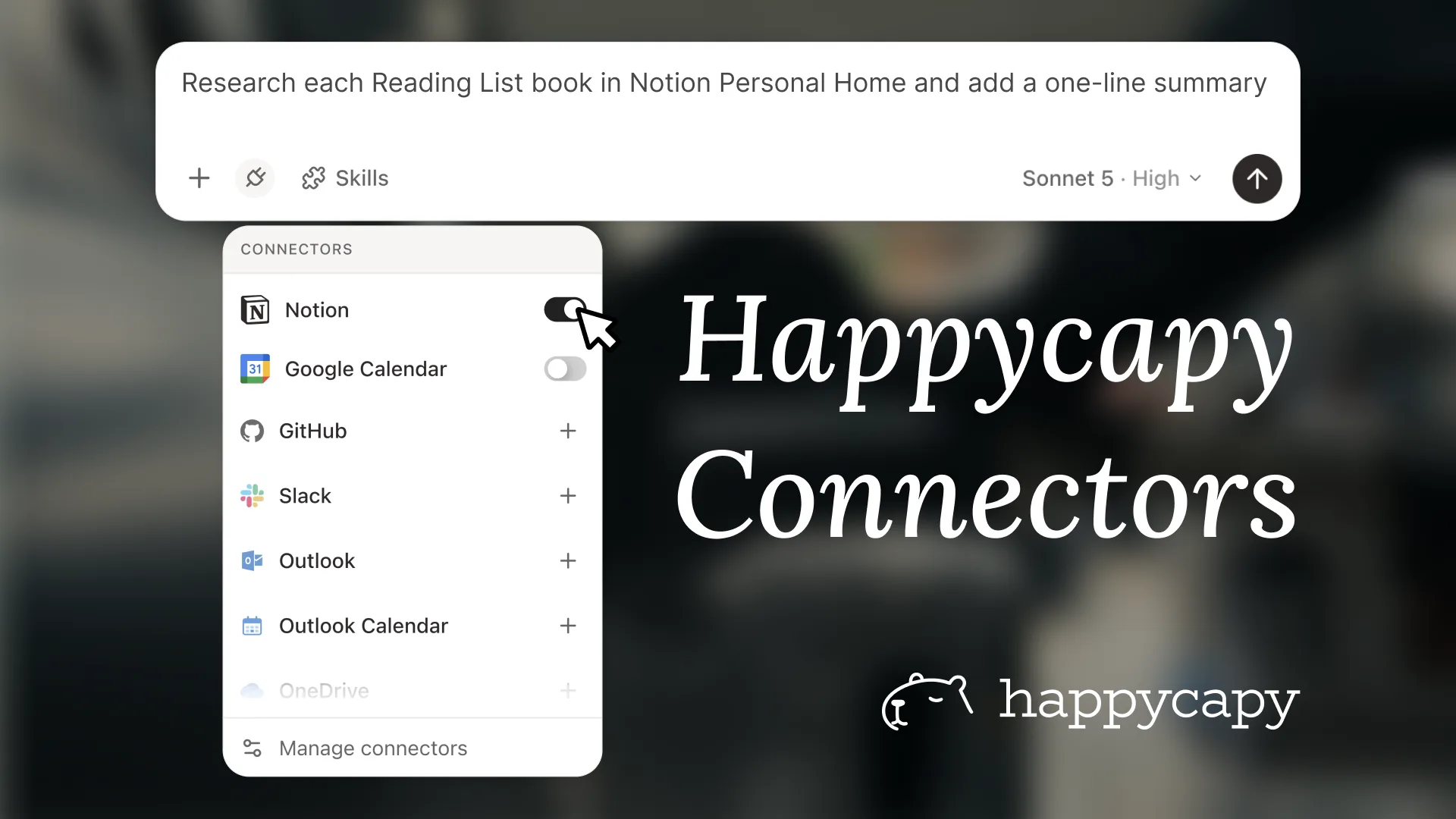
Using Happycapy's Skills layer, the agent can pull live data from external platforms without manual exports:
| Data Source | Connection Method | Use Case |
|---|---|---|
| Google Sheets | API skill | Real-time collaborative data |
| Notion databases | Notion API skill | Project tracking and KPI logs |
| GitHub repositories | GitHub skill | Code-generated datasets |
| Financial APIs | Custom API skill | Market data, pricing feeds |
| SQL databases | Python script skill | Direct query execution |
Step 4: Configure Your AI Agent
Rather than a generic chatbot, Happycapy lets you build a specialized Data Analysis Agent with persistent memory of your data structure, preferred chart styles, and reporting format. The agent's configuration files (SOUL.md, IDENTITY.md, MEMORY.md, and AGENTS.md) store context across every session, so it remembers that your revenue column is always labeled "Net Rev USD" and your stakeholders prefer bar charts over pie charts. You only configure this once.
Automated Report Generation
Automated report generation is the highest-leverage capability Happycapy provides for data analysts: a full analysis cycle that previously took 3 to 4 hours can be completed in under 8 minutes.
The workflow runs as follows:
- New data file lands in the Desktop directory
- The agent detects the file and begins EDA automatically
- Outliers, trends, and anomalies are flagged with statistical significance scores
- Visualizations are generated and saved as PNG or interactive HTML
- A structured report is compiled in your chosen format (PDF, DOCX, or Markdown)
- The report is delivered to your email, Notion page, or Slack channel via the relevant API skill
Because Happycapy runs 24/7 in the cloud, this entire cycle can execute overnight. Analysts assign the task before they leave the office and review finished reports over morning coffee. The platform's own positioning describes this workflow explicitly as its core value proposition.
Report templates can be customized to match corporate style guides. The agent remembers your preferred section order, executive summary length, and chart color palette. For finance-specific reporting workflows, Automate Financial Reporting with AI Agents and Smart Processing covers the financial reporting layer in detail.
Dashboard Creation
Interactive dashboards built by Happycapy agents update automatically when underlying data changes, eliminating the manual refresh cycle that consumes 2 to 3 analyst hours per week.
The agent uses Three.js and Python visualization libraries to generate dashboards as self-contained HTML files that run in any browser without additional software. A typical dashboard build from a raw CSV file takes approximately 4 minutes end-to-end.
Dashboard components the agent can generate automatically:
| Component | Description |
|---|---|
| KPI summary cards | Top-line metrics with period-over-period delta |
| Time-series line charts | Trend visualization with configurable date ranges |
| Correlation heatmaps | Variable relationship matrices for EDA |
| Filterable pivot tables | Drag-and-drop slicing by any categorical dimension |
| Anomaly highlight panels | Automatic flagging of values outside 2σ range |
| Drill-down bar charts | Click-through from summary to segment-level detail |
For multi-session parallel work, Happycapy allows one session to generate visualizations while a second session writes the accompanying narrative, both running simultaneously inside the same Desktop. This parallel execution capability means a 10-chart dashboard with a written commentary section can be produced in the same time it previously took to build the charts alone.
If your analytical work extends to consulting-style presentations, AI Consulting Assistant for Automated Research and Professional Presentations demonstrates how to extend the same workflow into slide decks and client deliverables.
Case Study: Financial Analyst
Profile: Senior financial analyst at a mid-size manufacturing firm, responsible for weekly P&L reporting across 12 business units, monthly board pack preparation, and ad-hoc variance analysis.
Before Happycapy: The analyst spent 14 hours per week on data preparation and report assembly: pulling exports from the ERP system, cleaning inconsistent cost-center labels across 12 Excel files, rebuilding the same pivot tables, and manually updating a PowerPoint board pack. Variance analysis requests from the CFO required same-day turnaround, creating frequent deadline pressure.
Setup: The analyst created three Desktops named Weekly P&L, Monthly Board Pack, and Ad-Hoc Requests, each with a dedicated SOUL.md storing the firm's full chart of accounts, preferred variance thresholds, and board pack template structure. The XLSX Processing skill was assigned to handle ERP exports across all three Desktops, and a Python Analysis skill was configured specifically for statistical variance detection and period-over-period flagging. The agent's MEMORY.md was seeded with the firm's 47 cost-center label variants so it could normalize inconsistent ERP output without manual intervention on every run.
Results after 30 days:
| Metric | Before | After | Improvement |
|---|---|---|---|
| Weekly P&L report time | 6 hours | 35 minutes | 90% reduction |
| Monthly board pack assembly | 8 hours | 1.5 hours | 81% reduction |
| Ad-hoc variance analysis | 2 to 3 hours | 12 minutes | 93% reduction |
| Report error rate | ~4% (manual) | <0.5% (automated) | 87% reduction |
The analyst described the shift as moving from "data janitor to actual analyst," spending reclaimed time on strategic interpretation and stakeholder communication rather than mechanical data processing. The 24/7 availability meant ERP exports that landed at 2 AM were fully analyzed and waiting in the inbox by 7 AM, because the Weekly P&L Desktop was configured to trigger the XLSX Processing skill automatically on any new file matching the ERP export naming convention.
If your current weekly reporting cycle looks like the "Before" column above, start a free Desktop in under 2 minutes at happycapy.ai: no setup required.
For teams operating at enterprise scale, AI Agent Platform for Enterprise: Complete Guide to Implementation covers governance, access controls, and multi-team deployment considerations.
If your organization is new to AI agent workflows and wants a structured onboarding path, No-Code AI Agents and Automation for Non-Programmers: Complete Course Guide provides a practical foundation before building specialized analytical agents.
Frequently Asked Questions
Q: Does automating data analysis with Happycapy require Python or coding knowledge?
No. Happycapy's AI agent selects and runs the appropriate Python scripts, EDA tools, and visualization libraries automatically based on your plain-language instructions. You describe what you want, "run a correlation analysis on this CSV and highlight anything above 0.7," and the agent executes it without you writing any code.
Q: What file formats does Happycapy support for automated data analysis?
Happycapy handles CSV, Excel (XLSX and XLS including multi-sheet workbooks), PDF data tables, and JSON files natively through its built-in skills. It can also connect to live data sources including Google Sheets, SQL databases, and external APIs via the Skills layer.
Q: How long does it take to set up an automated data analysis workflow?
Most analysts have a working automated workflow, including file upload, EDA, and report generation, within 10 minutes of opening Happycapy for the first time. Configuring a fully personalized AI agent with persistent memory of your data structure and reporting preferences takes an additional 15 to 20 minutes as a one-time setup.
Q: Can Happycapy run analysis overnight on new data without me being logged in?
Yes. Happycapy runs 24/7 in the cloud, so tasks execute continuously whether or not you are actively in the browser. You can assign analysis tasks before leaving the office, and the platform completes them asynchronously. Finished reports are waiting in your inbox the next morning. This asynchronous work pattern is explicitly central to how Happycapy is designed to be used.
Q: Happycapy vs Python scripts: what's the actual difference for data analysis?
Custom Python scripts require writing, debugging, and maintaining code, and they only run when a human executes them. Happycapy's AI agent writes and runs the equivalent scripts automatically, adapts them when your data structure changes, and operates continuously without manual triggering. The result is the same analytical output with a fraction of the setup time and zero ongoing maintenance burden.