iPhone users
Convert the HEIC photos your iPhone saves into a PDF that any app or website can open.
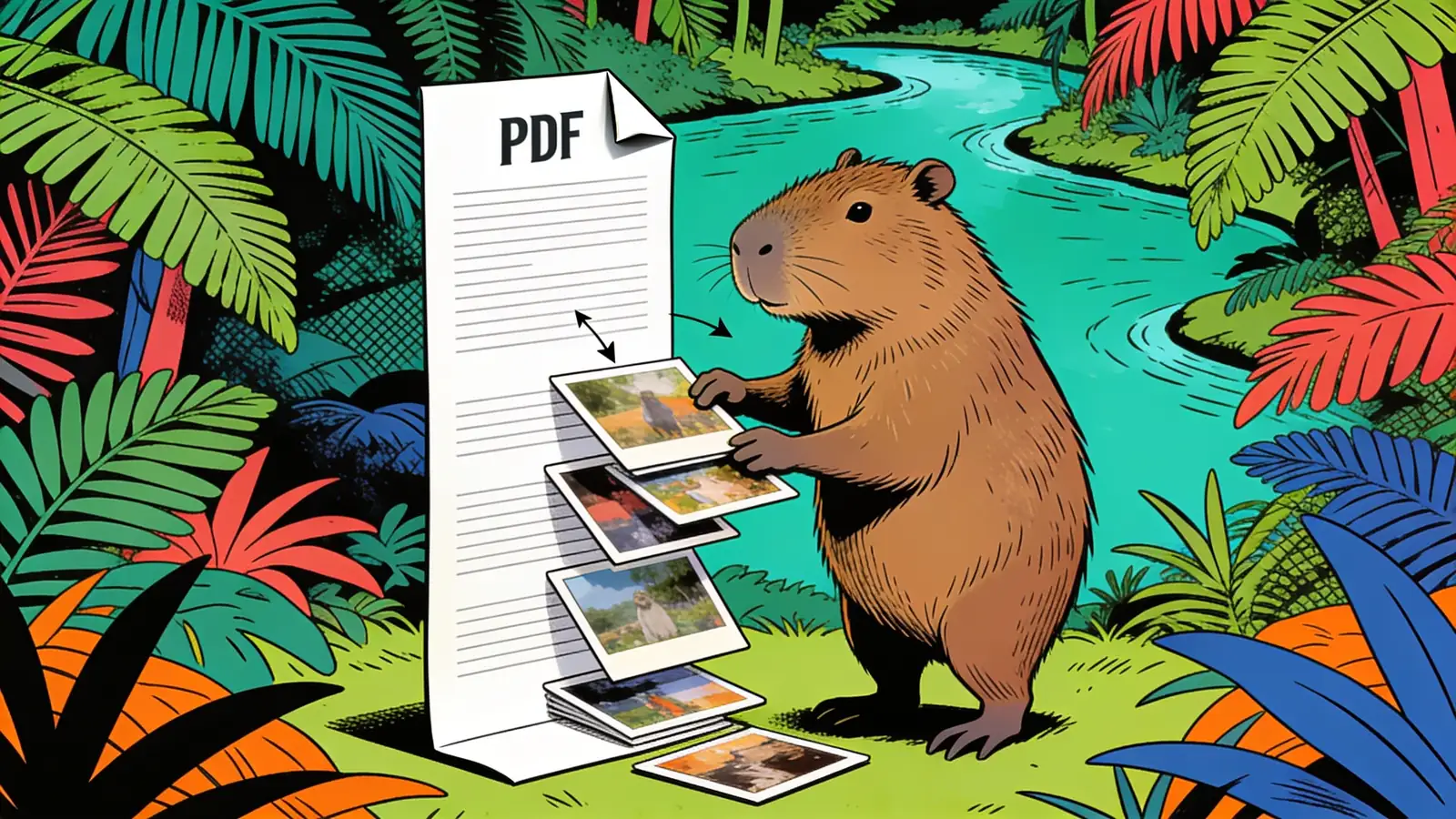
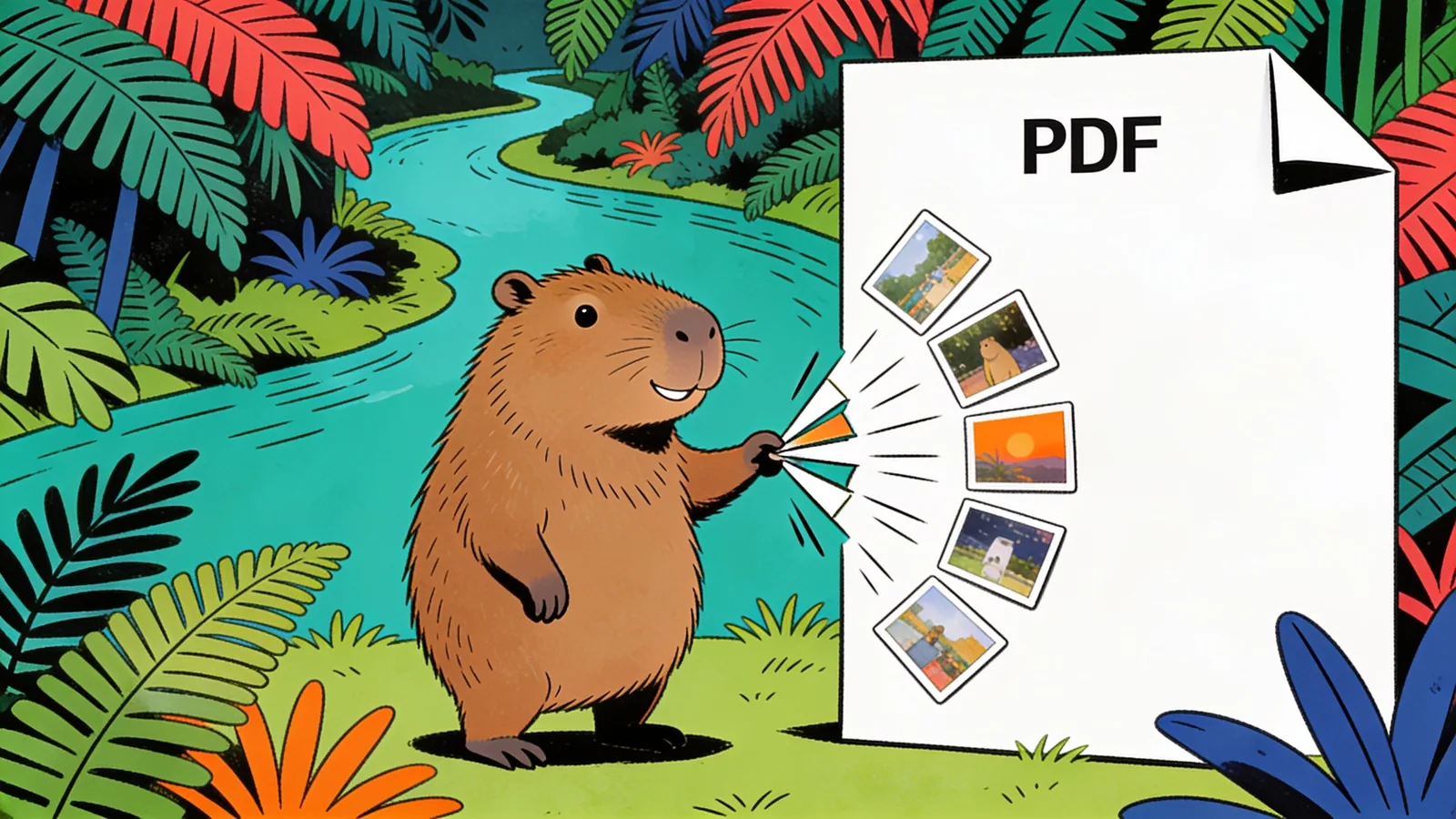
Turn iPhone HEIC photos into a PDF — combine several into one file at full quality, no camera settings to change.
Upload HEIC files, set order and page size, then combine them into a PDF that opens anywhere.
Pick an example or say how to combine your photos — one PDF or one per image, page size and order.
Convert the HEIC photos your iPhone saves into a PDF that any app or website can open.
Combine photos of receipts, forms, or documents into one PDF to email or file.
Turn snapshots of pages into a single tidy PDF to submit or share.
Decide up front: merge all photos into a single PDF, or one PDF per image.
"in the order I uploaded" or "by date" so pages land the way you expect.
A4, Letter, or fit-to-image — name it so the layout matches your use.
Ask to keep original resolution if you plan to print the PDF.
Convert the HEIC files you already have — no need to switch the camera to JPEG.
Hand over a folder of HEIC photos to convert them all in one pass.
Review output quality, follow-up checks, and download expectations for HEIC to PDF.
Most HEIC files convert cleanly to PDF with full image fidelity, since the process is a format wrap rather than a lossy re-encode — a typical 4–6 MB iPhone HEIC photo will produce a PDF page of roughly 5–8 MB. Multi-image batches are combined into a single PDF, with file size scaling roughly linearly per photo added. Best input: original HEIC photos in the intended order, with instructions for page size, one-photo-per-page layout, and whether to preserve full image quality.
Example: Input: six iPhone HEIC photos of receipts from a business trip. Output: one PDF with the receipts arranged in upload order, each photo placed on its own page at readable size. Good for expense reports, reimbursements, and archiving images in a format every recipient can open.
Upload your HEIC photos directly in the chat and describe how you want the PDF structured — page order, size, one file or many. The tool processes them in the browser-based interface and returns a downloadable PDF at no cost to start.
Sign up free and put AI agents to work across your tasks, from quick jobs to complete end-to-end workflows, right in your browser, no setup needed.
Get started for free