
Claude Code Web: How to Run Claude Code in Your Browser (No Install)
Claude Code web means running Claude Code in your browser instead of a terminal. How to do it with no install, plus the official Chrome integration and self-hosted options compared.
Claude Code web, running Claude Code in your browser instead of a local terminal, is possible with no install by using a managed agent-native computer that runs it in a cloud sandbox: you open a tab, describe the task, and watch it work. That's the short answer. But "Claude Code web" (or "Claude Code in the browser") actually means two different things, and which one you want changes the setup completely. This guide clears up the confusion and shows the three ways to run Claude Code from a browser, from the official tools to the zero-install option.
Two Things "Claude Code in the Browser" Can Mean
Before choosing a tool, separate the two meanings. They're often confused:
- Claude Code controlling your browser. Here Claude Code still runs on your machine, but it can open and drive Chrome, clicking, filling forms, reading console logs. This is Anthropic's official Chrome integration.
- Running Claude Code from your browser. Here there's no local terminal at all: Claude Code itself runs in the cloud, and you interact with it through a web page. This is what most people mean by "no install."
This guide focuses on the second meaning, running Claude Code without a local install, but covers both so you pick the right path.
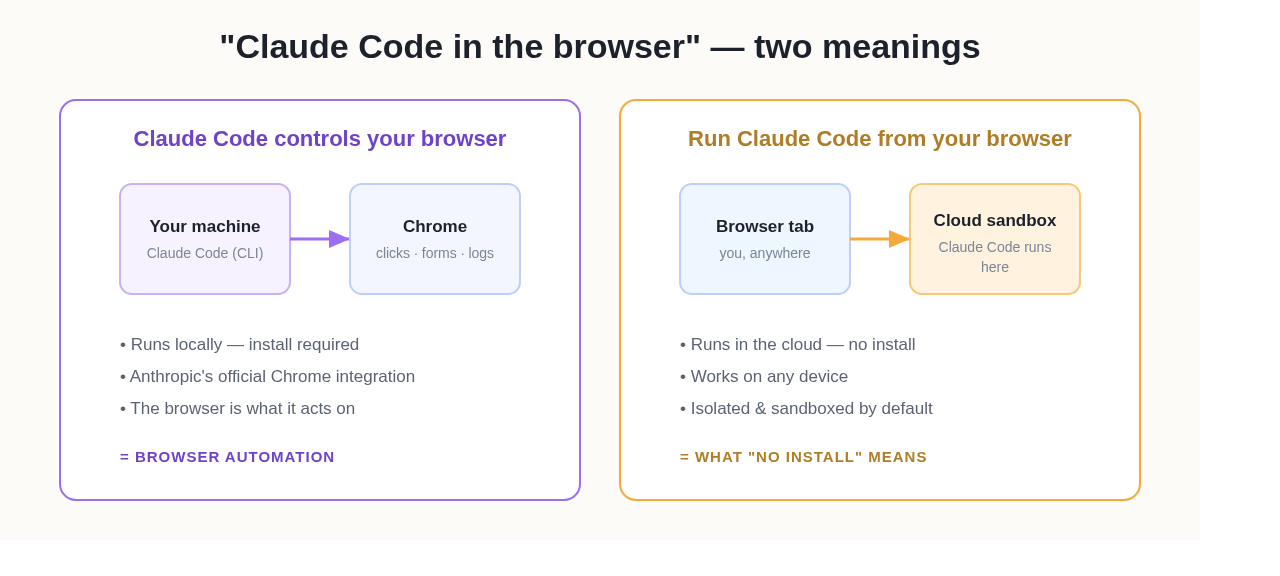 "Claude Code in the browser" splits into two very different setups.
Why Run Claude Code on the Web?
Running Claude Code from the browser, what people often search for as "Claude Code web", removes the biggest barrier to using it: setup. The standard Claude Code experience is a command-line tool you install and configure locally, which is fine for developers but a wall for everyone else. Running it in the browser gives you:
- Zero install: no terminal, no Node, no environment setup.
- Any device: works from a laptop, a borrowed computer, or a Chromebook.
- Sandbox safety: the agent runs in an isolated cloud environment, not on your own machine, so a mistake or a malicious instruction can't reach your files.
- A lower barrier for non-developers: you describe what you want instead of living in a CLI.
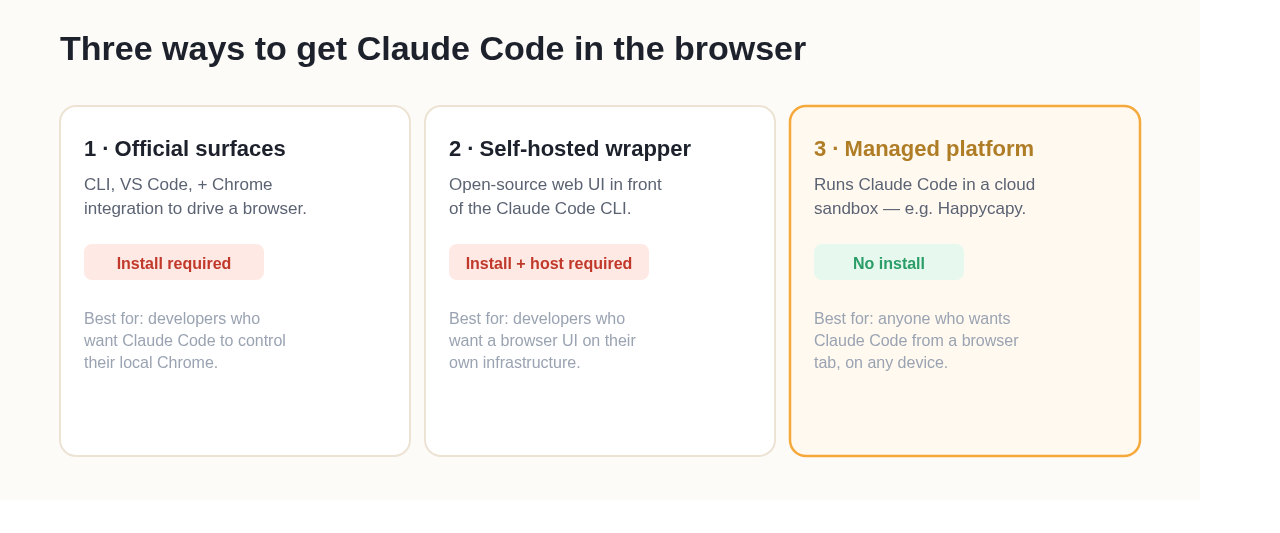 Three routes: only a managed platform requires zero install.
| Option | Install? | Where Claude Code runs | Best for |
|---|---|---|---|
| 1. Official surfaces (CLI + Chrome integration) | Yes (local install) | Your machine (drives your Chrome) | Developers who want Claude Code to control their local browser |
| 2. Self-hosted web wrapper (e.g. claude-code-web) | Yes (install + host it) | A server/machine you run | Developers who want a browser UI on their own infrastructure |
| 3. Managed platform (e.g. Happycapy) | No | A managed cloud sandbox | Anyone who wants Claude Code from a browser tab, on any device |
Option 1: Claude Code's Official Surfaces
Claude Code officially ships as a command-line tool, with a VS Code extension and a Chrome integration. The Chrome integration (enabled with the --chrome flag or /chrome) lets Claude Code drive your browser through the Claude for Chrome extension, useful for testing web apps, debugging from console logs, and automating form filling.
Important: this is the controlling-your-browser meaning. Claude Code still runs locally and requires installation; the browser is the thing it acts on, not the thing it runs in. If your goal is to avoid installing anything, this isn't it.
Option 2: Self-Hosted Web Wrappers
There are open-source projects (for example, claude-code-web) that put a web-based interface in front of the Claude Code CLI, so you can use it from a browser tab with multi-session support. These genuinely run Claude Code from a browser.
The catch: the CLI still has to run somewhere. You install and host it yourself on a server or your own machine, then access it over the web. It's a great option for developers who want a browser UI on their own infrastructure, but it isn't zero-setup. You're still the one doing the install and maintenance.
Option 3: A Managed Agent-Native Computer (Zero Install)
If neither installing a CLI nor self-hosting appeals, a managed platform runs Claude Code for you. On Happycapy, Claude Code lives in a cloud sandbox you reach from a browser tab: open it, describe the task, and watch the agent work. The install, the environment, and the isolation are already handled, so the only thing you bring is the goal. (Under the hood it's a fully managed agent harness, and it can run 150+ other models, but for this use case, Claude Code is the point.)
Because it all runs server-side, the same session works from a laptop, a Chromebook, or a borrowed machine, and you can step into the agent's desktop mid-task, none of which a local install offers.
How to Run Claude Code in Your Browser with Happycapy
- Open Happycapy in your browser at happycapy.ai, no install, no terminal.
- Start an agent and choose Claude Code (or let it pick the right model for the task).
- Describe what you want in plain language: fix a bug, build a small app, refactor a file, scaffold a project.
- Watch it work in the sandbox on a visual desktop, and step in with a click if you want to redirect it.
- Get the result delivered in the workspace (or to your inbox), and reply to continue the task.
Security: Why the Sandbox Matters
Running Claude Code from the browser changes the security picture in a specific way. A browser-based coding agent spends a lot of its time reading web pages and external content, which is exactly where prompt-injection attacks hide: a malicious instruction buried in a page the agent opens. The three options handle that risk very differently:
- Option 3 (managed): execution happens in an isolated cloud sandbox by default, so even a hijacked command can't reach your real files or credentials.
- Option 2 (self-hosted): you get a sandbox only if you configure one. The CLI runs on whatever machine you host it on.
- Option 1 (official Chrome integration): Claude Code runs on your actual computer and drives your real browser, so grant it the least access you can and watch what it does.
The rule of thumb: the more the agent touches the open web, the more you want its execution isolated from your own machine.
Frequently Asked Questions
Q: Is there a Claude Code web version?
Yes, "Claude Code web" means running Claude Code from a browser rather than a local terminal. There are three ways: Anthropic's official tools (which still require a local install), self-hosted web wrappers around the CLI, and managed platforms like Happycapy that run Claude Code in a cloud sandbox with no install at all.
Q: Can I run Claude Code in a browser without installing it?
Yes. Use a managed agent-native computer like Happycapy, which runs Claude Code in a cloud sandbox you access from a browser tab. There's no terminal, Node, or local setup. Self-hosted web wrappers also run it from a browser, but you install and host the CLI yourself.
Q: Does "Claude Code in the browser" mean it controls my browser?
That's one of two meanings. Anthropic's official Chrome integration lets a locally-installed Claude Code control Chrome. The other meaning, running Claude Code from a browser with no install, is what a managed platform provides.
Q: Is it safe to run Claude Code in the browser?
It's often safer than running it locally, provided the agent executes in an isolated cloud sandbox. The sandbox contains any mistakes or prompt-injection attacks so they can't reach your own machine or files.
Q: Do I need a developer background to use Claude Code in the browser?
No. The whole point of running it in a managed browser environment is to remove the technical barrier. You describe the task in plain language instead of working in a command line.
Q: What's the difference between the Claude for Chrome extension and running Claude Code in the browser?
The Claude for Chrome extension lets a locally-installed Claude Code drive your Chrome browser. Running Claude Code in the browser (via a managed platform) means Claude Code itself runs in the cloud and you use it through a web page, no local install at all.