Students and researchers
Turn photos of textbook pages or printed notes into editable text you can quote and rework.
Convert JPG images, scans, and screenshots into editable Word documents with OCR.
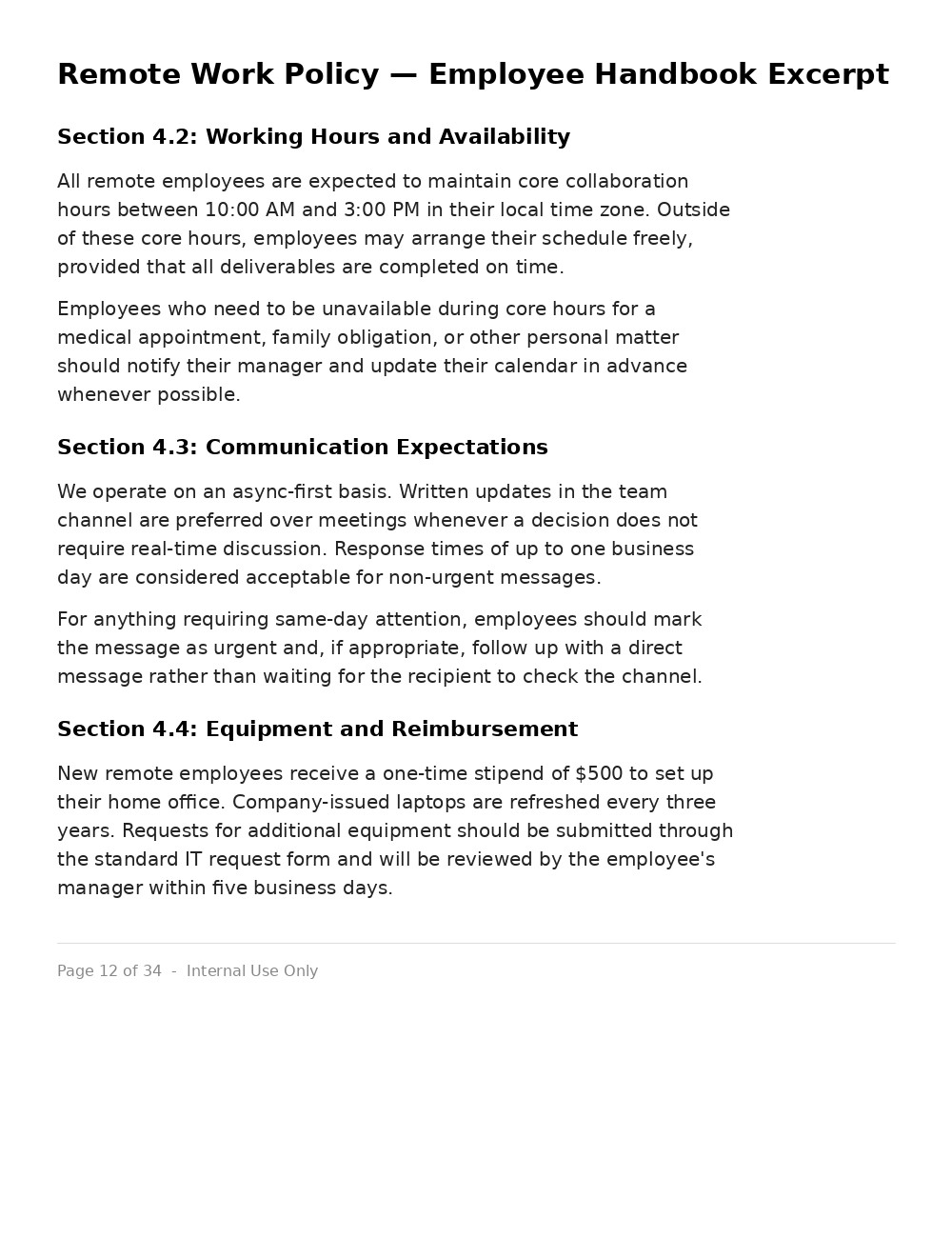
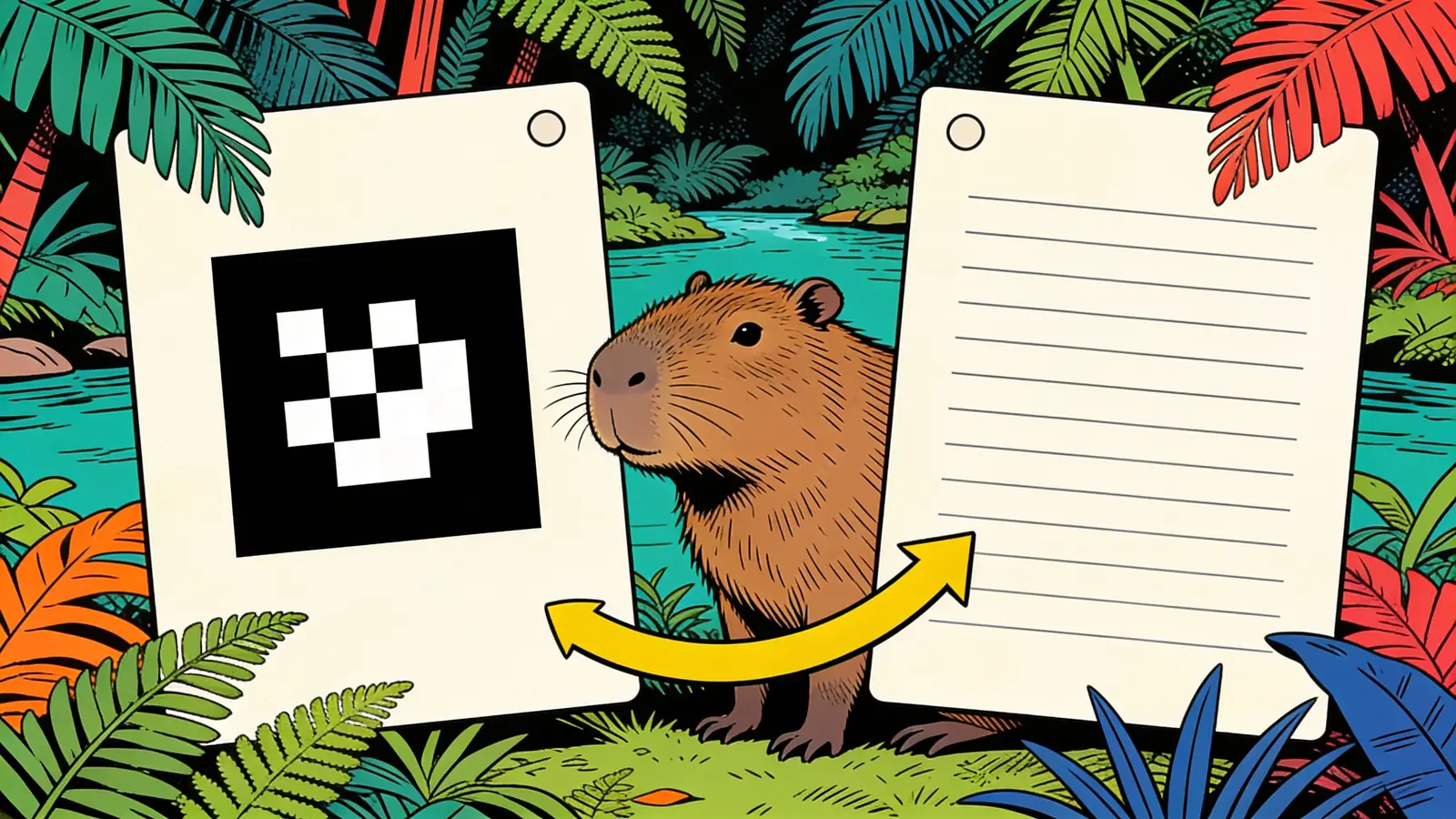
A JPG screenshot of a policy document, dense with paragraphs and section headings.
The same text reconstructed into a .docx with headings and paragraphs preserved.
Upload a scan, screenshot, or document photo and convert readable text into an editable DOCX.
Pick an example or say what you need — all text, just a table, or the whole layout.
Turn photos of textbook pages or printed notes into editable text you can quote and rework.
Convert scanned forms and screenshots into Word so you can update them without retyping.
Pull text off receipts, letters, and documents into a file you can search and edit.
Clear, well-lit scans and screenshots give the most accurate OCR results.
"keep the headings and table" tells Happycapy which structure matters.
Mention the language if it is not English so OCR reads the characters correctly.
Choose a faithful layout copy or a clean plain-text dump, depending on your use.
Blurry photos or handwriting may need a quick review after conversion.
Drop several images for one combined Word doc or one file each.
Review output quality, follow-up checks, and download expectations for JPG to Word OCR.
Clean printed JPGs, scans, and screenshots usually convert into editable Word text with strong OCR accuracy, especially when the image is straight, high contrast, and at least about 150 DPI. Expect best results for letters, forms, receipts, invoices, notes, and tables with clear borders. Handwriting, decorative fonts, skewed phone photos, and small low-contrast text need more manual review. Best input: a straight, sharp, high-contrast scan or screenshot, plus instructions for whether you want plain OCR text, layout preservation, or editable tables.
Example: Input: a 300 DPI JPG scan of a one-page invoice with a header, billing address, item table, totals, and payment notes. Output: an editable DOCX with the invoice title as a heading, addresses as text blocks, line items reconstructed as a Word table, and totals preserved as selectable text. The result is ready to edit after checking names, dates, and numbers.
Upload your JPG directly in the tool above and the OCR engine reads the text, then delivers a properly formatted DOCX file you can open and edit in Microsoft Word or Google Docs — no desktop software required.
Sign up free and put AI agents to work across your tasks, from quick jobs to complete end-to-end workflows, right in your browser, no setup needed.
Get started for free