Compress PNG

Shrink PNG file size without wrecking the image. Tell Happycapy how small you need it and it compresses your PNGs — trimming bytes for faster websites and easier email while keeping the picture sharp. Compress one or a whole folder. Free to start.

How it works

1

Set your target

Pick an example or say how small you need it, like "under 200 KB".

2

Attach your PNGs

Continue into Happycapy and drop in one image or a whole folder.

3

Let Happycapy compress

It trims redundant data and re-encodes the PNG to cut size while keeping it sharp.

4

Download your PNG

Grab a smaller file that still looks clean, ready for web or email.

Who is this for

Web developers

Shrink oversized PNGs so pages load faster and pass performance checks.

Office workers

Compress screenshots and graphics so they fit email and upload limits.

Designers

Deliver lighter assets to clients and CMSes without a noticeable quality drop.

Six prompt-engineering tips that move the needle

Small changes in how you write a prompt make the biggest difference in output.

01

Name a size target

"under 200 KB" guides how hard Happycapy compresses.

02

Protect sharp text

For screenshots, ask to keep text crisp so it stays readable.

03

Keep transparency

Transparent backgrounds are preserved through compression.

04

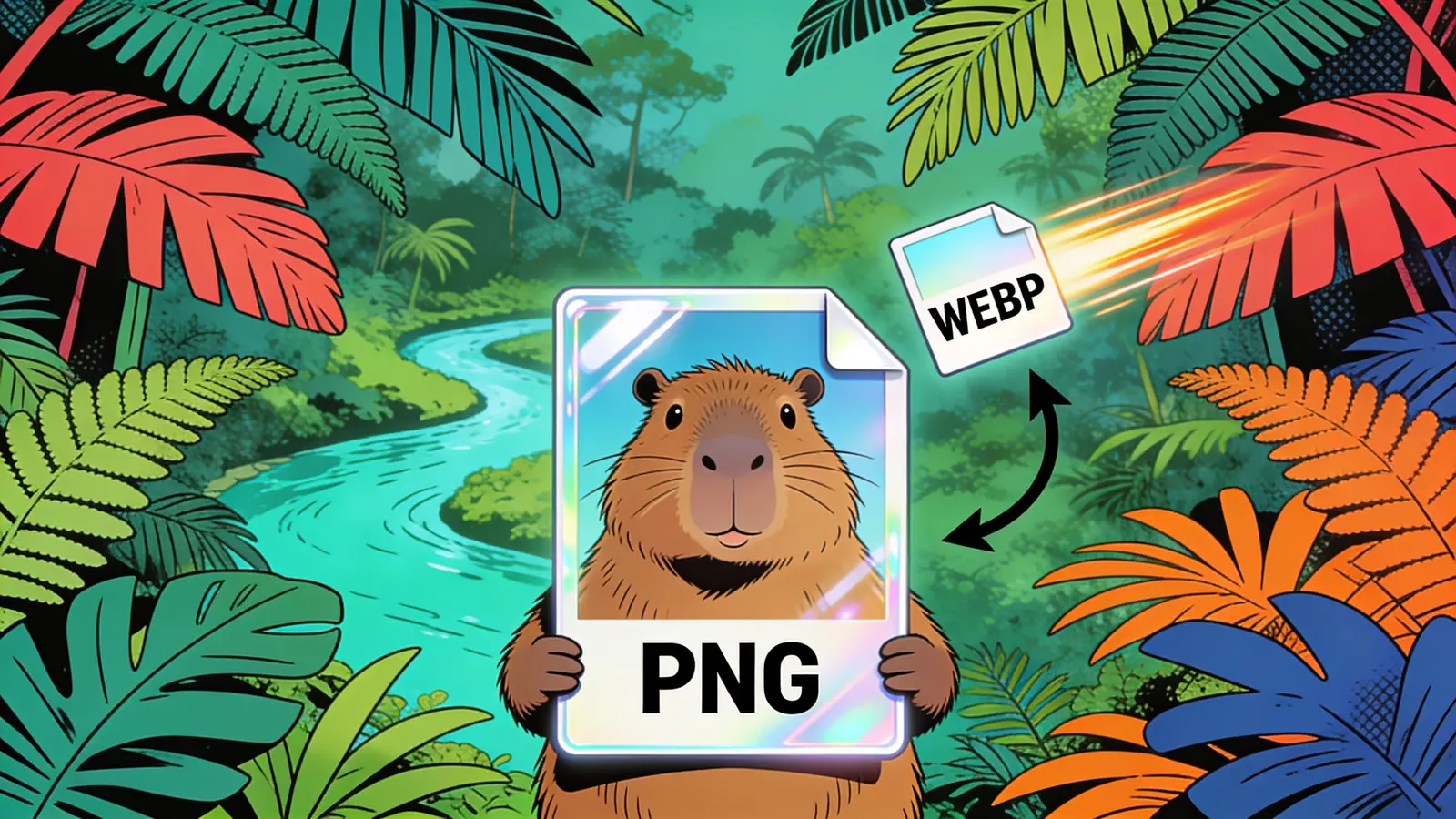
Consider WebP

If you can change format, WebP often beats a compressed PNG on size.

05

Batch a folder

Compress every PNG in a folder in a single pass.

06

Compare before and after

Ask for the new file size so you can confirm the savings.

What to expect

Most PNGs compress 40–70% smaller depending on image content — photos and gradients see modest gains (20–40%), while screenshots, diagrams, and flat-color graphics often shrink 50–70%. Lossy palette reduction (e.g. 256-color quantization) yields the largest savings but may introduce subtle dithering on smooth gradients.

Example: How much you save depends heavily on the image. Flat-color screenshots, logos, and diagrams often shrink 50–70%, while photos and already-optimized PNGs may drop only a few percent — in a quick test, a detailed 2,560×1,440 illustration barely compressed at all. For photographic content, converting to WebP usually saves far more than re-compressing the PNG.

Good to know

  • Already-optimized PNGs (e.g. previously run through pngcrush or TinyPNG) may only shrink an additional 5–15%, since most redundancy has been removed.
  • Images with complex photographic content or thousands of colors resist palette-based compression well — a 24-bit photo PNG may only reduce 15–25% without visible banding.
  • The tool cannot recover detail after compression; if you overcompress a gradient-heavy image and see color banding, you must re-upload the original — the compressed version cannot be 'un-quantized'.

Frequently asked questions

How do I compress a PNG for free?

Upload your PNG and specify how small you need it — the tool compresses and returns a lighter file at no cost. No account is required to get started.

Will compression reduce my image quality?

Mild compression is typically invisible to the eye; only aggressive size targets — say, squeezing a 2 MB screenshot down to 50 KB — may soften fine detail. You control the trade-off by choosing how tight a size target to set.

Can I compress a PNG to a specific file size, like under 200 KB?

Yes — state a target such as 'under 200 KB' and the tool works toward that threshold, tuning the compression level to get as close as possible while keeping the image legible.

Does compression affect PNG transparency?

Transparency is preserved during compression. Alpha channels in logos, icons, and UI screenshots survive the process intact, so transparent backgrounds stay clean.

Why are PNG files so large compared to JPEGs?

PNG uses lossless encoding, which records every pixel exactly — great for accuracy, but costly in bytes for photographs and dense screenshots. Compression strips redundant pixel patterns and metadata, often cutting size by 40–70% on typical screenshots.

Can I compress an entire batch of PNGs at once?

Yes. Drop a folder of PNGs and every file is processed in a single pass, returning the full set of compressed images together — useful for optimising a whole web project at once.

Does this tool work inside a browser, or do I need to install something?

It runs entirely in the browser as an online tool — no desktop app, plugin, or command-line setup needed. Upload your PNGs and download the compressed results directly from the page.

Ready to create?

Sign up free and put AI agents to work across your tasks, from quick jobs to complete end-to-end workflows, right in your browser, no setup needed.

Get started for free