Video Frames
Efficiently extract high-resolution individual frames from video files using powerful ffmpeg command-line tools
Vetting scorecard
Each dimension is scored against its own maximum; together they sum to the overall grade (out of 100).
Input → output capabilities
| media | video | gif | image |
|---|---|---|---|
| text | - | - | - |
| image | - | - | - |
| video | 2 | 1 | 3 |
Rows are accepted inputs, columns are produced outputs; each cell counts supported conversions.
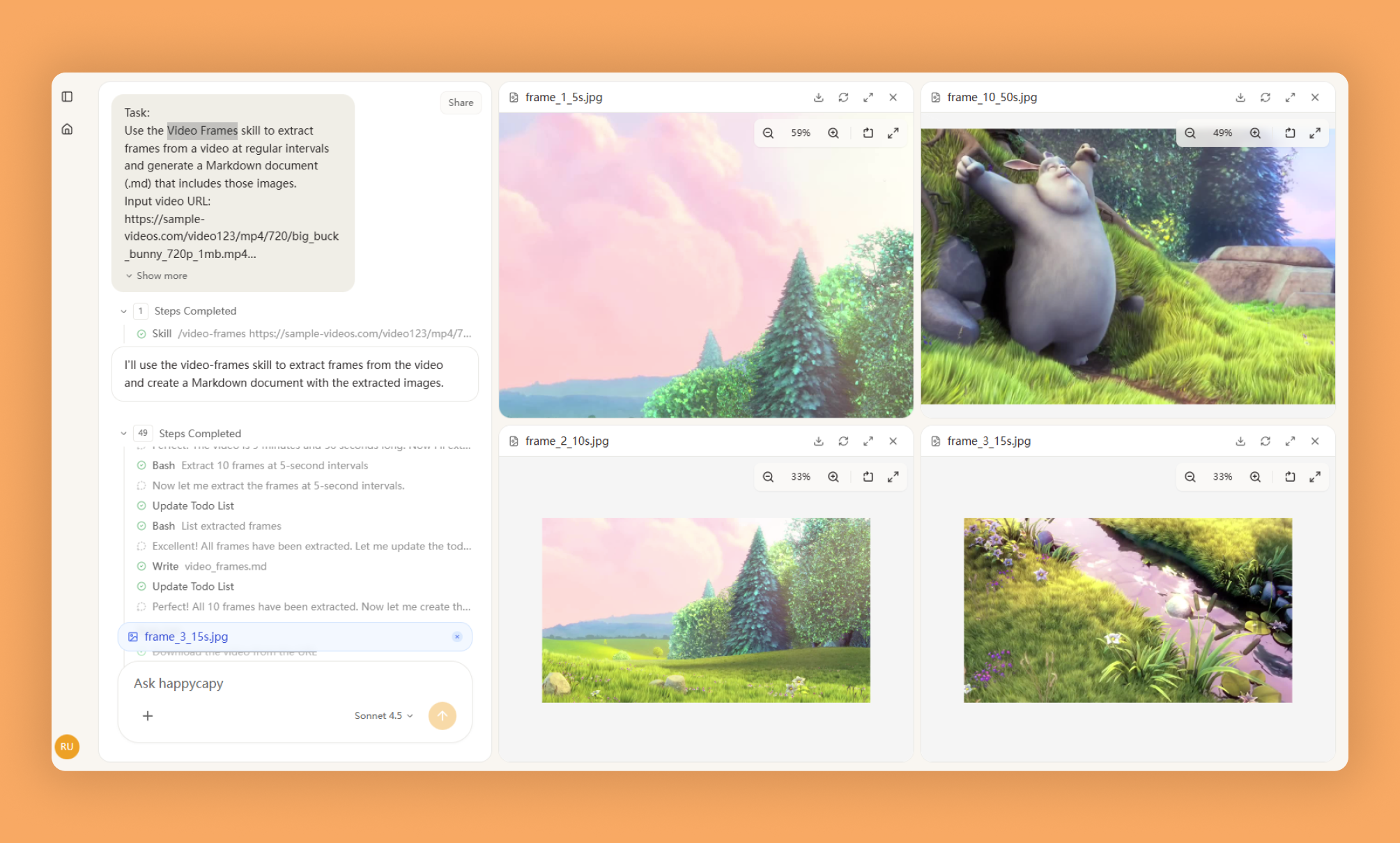
Video Frames extracts individual frames from video files at precise timestamps or intervals using FFmpeg. Perfect for creating thumbnails, documentation, quality checks, and research datasets without manual seeking.
What Is This?
- Extracts still images from video at exact timestamps, regular intervals, or in bulk sequences
- Supports multiple output formats (JPG, PNG, etc.) with customizable quality and resolution settings
- Handles frame comparison, scene detection, and composition analysis for QA and content work
Why Use It?
- Eliminate manual seeking: Extract frames at millisecond-accurate timestamps instead of scrubbing through video
- Batch process efficiently: Handle multiple extraction operations or entire video segments with simple commands
- Maintain consistent quality: Preserve resolution, aspect ratio, and color space across all output frames
- Organize automatically: Generate numbered sequences and descriptive filenames for hundreds of frames
How to Use It?
Specify a video file and extraction method—single frame at a timestamp, frames at intervals, or entire sequences.
ffmpeg -i video.mp4 -ss 00:01:30 -vframes 1 frame.jpg
ffmpeg -i video.mp4 -vf fps=1 frame_%04d.jpg
For tutorial documentation, extract frames at key timestamps and save at full resolution. For social media, extract at 10-second intervals to find the best thumbnail. For quality comparison, extract identical frames from two encodings at the same timestamps to evaluate compression side-by-side.
Test extraction on short segments before processing large files. Use PNG for frames you'll edit further; use JPG for final web output. Extract at the video's native frame rate when creating animation sequences.
When to Use It?
- Video thumbnailing and previews: Generate platform-specific preview images or identify compelling thumbnail candidates from sequences
- Quality assurance: Inspect encoding quality, identify compression artifacts, or verify video content frame-by-frame
- Documentation and tutorials: Create step-by-step visual guides from recorded content or extract reference frames for compositing
Important Notes
- FFmpeg must be installed and available in your system path; source videos must be in FFmpeg-supported formats
- Extracting from long videos or high frequencies is time-consuming; 4K at 60fps generates thousands of multi-megabyte images per minute
- Use PNG for intermediate frames that will be edited; avoid lossy JPG for work that requires further processing
Try It in Happycapy
- Open Happycapy in your browser—no signup or installation needed.
- Describe what you want: "Extract 5 frames from my tutorial video at 10-second intervals and save them as high-quality PNG files."
- Get your numbered frame sequence ready to use for documentation or thumbnails.
Frequently asked questions
How do I extract frames from a video file?+
The Video Frames skill in Happycapy uses ffmpeg command-line tools to efficiently extract individual frames from video files at high resolution. You can specify the frame rate and output format to customize your extraction process.
What video formats does the Video Frames skill support?+
This Happycapy skill leverages ffmpeg's extensive codec support, allowing you to extract frames from virtually all common video formats including MP4, AVI, MOV, MKV, and WebM.
Can an AI agent use this skill to automate video frame extraction?+
Yes, an AI agent can integrate the Video Frames skill to automate large-scale video processing workflows, enabling batch frame extraction without manual intervention.
What resolution can I extract frames at?+
The Video Frames skill supports high-resolution frame extraction up to the original video quality, preserving all detail from your source material. An AI agent can configure resolution parameters based on your specific requirements.
Is the Video Frames skill available on Happycapy?+
Yes, the Video Frames skill is available in the Happycapy Skills repository on GitHub, where you can access the source code and integrate it into your AI workflows.
More Skills You Might Like
Explore similar skills to enhance your workflow
PDF Processing
Comprehensive toolset to read, create, merge, split, and manipulate PDF documents with professional precision
Latex Document
Universal LaTeX document skill for creating, compiling, and converting any document to professional PDF with PNG previews
Slack Gif Creator
Design and export high-quality animated GIFs specifically optimized for seamless sharing on Slack
Get started with Video Frames on Happycapy
Efficiently extract high-resolution individual frames from video files using powerful ffmpeg command-line tools. Video Frames is a skill on Happycapy, the agent-native computer for building with AI — sign up free to add and run it, no local setup required.