PDF Processing
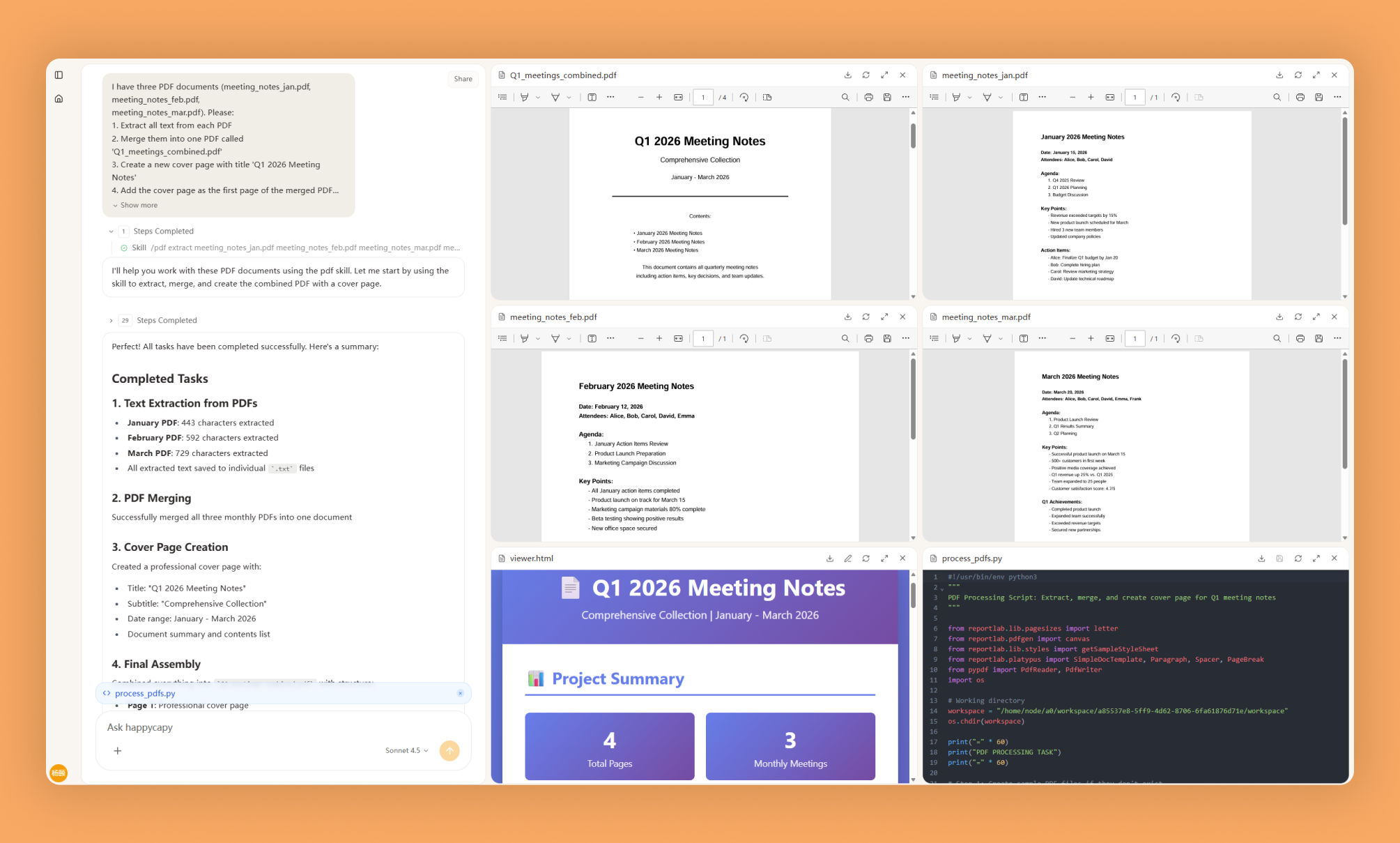
Comprehensive toolset to read, create, merge, split, and manipulate PDF documents with professional precision
Vetting scorecard
Each dimension is scored against its own maximum; together they sum to the overall grade (out of 100).
Input → output capabilities
| doc | summary | markdown | docx | chart | json | |
|---|---|---|---|---|---|---|
| text | 1 | 1 | - | 3 | - | - |
3 | 3 | 1 | 3 | - | 2 | |
| docx | 1 | 1 | - | 1 | - | - |
| csv_xlsx | - | - | - | 1 | - | - |
| image | 1 | - | - | 2 | - | - |
| url | - | - | - | 1 | - | - |
Rows are accepted inputs, columns are produced outputs; each cell counts supported conversions.
PDF Processing gives you programmatic control to read, extract, merge, split, and manipulate PDF documents—automating what would take hours of manual work through desktop applications.
What Is This?
- Handles reading, extracting text and tables, merging, splitting, rotating, and encrypting PDFs using Python libraries (pypdf and pdfplumber)
- Preserves layout and structure when extracting tables and text from PDF reports
- Supports OCR on scanned documents, form filling, watermarking, and image extraction
Why Use It?
- Automate repetitive tasks: Process dozens or hundreds of PDFs consistently without manual intervention
- Extract structured data: Preserve table formatting and convert PDF data to analysis-ready formats like CSV
- Make scanned PDFs searchable: OCR converts image-based PDFs into text-based, indexed documents
- Batch handle complex operations: Merge, split, rotate, and encrypt files in minutes instead of days
How to Use It?
Extract text from a PDF:
from pypdf import PdfReader

reader = PdfReader("document.pdf")
text = ""
for page in reader.pages:
    text += page.extract_text()
Merge multiple PDFs:
from pypdf import PdfWriter, PdfReader

writer = PdfWriter()
for pdf_file in ["doc1.pdf", "doc2.pdf"]:
    reader = PdfReader(pdf_file)
    for page in reader.pages:
        writer.add_page(page)

with open("merged.pdf", "wb") as output:
    writer.write(output)
Extract tables:
import pdfplumber

with pdfplumber.open("report.pdf") as pdf:
    for page in pdf.pages:
        tables = page.extract_tables()
        for table in tables:
            for row in table:
                print(row)
Split into individual pages:
reader = PdfReader("input.pdf")
for i, page in enumerate(reader.pages):
    writer = PdfWriter()
    writer.add_page(page)
    with open(f"page_{i+1}.pdf", "wb") as output:
        writer.write(output)
When to Use It?
- Extracting tables from financial or business reports for database import
- Merging case documents or consolidating files from multiple sources
- Converting scanned archives into searchable, full-text indexed collections
Important Notes
- Text extraction quality depends on PDF structure; scanned images extract poorly without OCR
- Encrypted PDFs require passwords; some advanced features like complex annotations may not be supported
- Test extraction logic on sample files before batch processing large volumes
Try It in Happycapy
- Open Happycapy in your browser (no install or signup needed to try).
- Describe what you want in one sentence, for example: "Merge these three PDF reports into a single document" or "Extract all tables from this sales report and convert to CSV."
- Get your result—the PDF Processing skill handles the operation and returns your processed file.
Frequently asked questions
Can I use Happycapy to automate PDF document processing tasks?+
Yes, Happycapy's PDF Processing skill enables AI agents to read, create, merge, and manipulate PDF documents programmatically. This allows you to automate complex document workflows with professional precision.
What PDF operations can an AI agent perform with this skill?+
The PDF Processing skill supports comprehensive operations including reading PDF content, creating new documents, merging multiple PDFs, splitting documents into separate files, and manipulating page layouts and metadata.
How does Happycapy's PDF skill help with document management?+
Happycapy integrates PDF Processing as a featured skill to streamline document management workflows, allowing AI agents to handle batch operations, extract data, and reorganize documents efficiently without manual intervention.
Can I extract data from PDFs using this AI agent skill?+
Yes, the PDF Processing skill provides tools to read and extract content from PDF documents, making it ideal for data extraction, form processing, and document analysis tasks within your AI agent workflows.
Is the PDF Processing skill suitable for enterprise document automation?+
Absolutely, this skill is designed with professional precision for enterprise-level document automation, enabling AI agents to handle large-scale PDF operations reliably and securely through Happycapy's robust infrastructure.
More Skills You Might Like
Explore similar skills to enhance your workflow
Slack Gif Creator
Design and export high-quality animated GIFs specifically optimized for seamless sharing on Slack
Supabase Postgres Best Practices
Comprehensive guide for optimizing Postgres database performance and security using Supabase best practices
Prompt Improver
Optimize prompts for better AI responses by transforming vague requests into clear and actionable instructions
Get started with PDF Processing on Happycapy
Comprehensive toolset to read, create, merge, split, and manipulate PDF documents with professional precision. PDF Processing is a skill on Happycapy, the agent-native computer for building with AI — sign up free to add and run it, no local setup required.