Content Creators & Video Editors
Repurpose or reuse footage that has hardcoded captions, old branding, or channel watermarks baked in — without spending hours in frame-by-frame editing software.
Remove Text, Captions & Watermarks from Video — Instantly. Powered by paid AI video models — no free tier.
Videos are 4–30 seconds, available in 16:9, 4:3, 1:1, 3:4, 9:16, or 21:9.
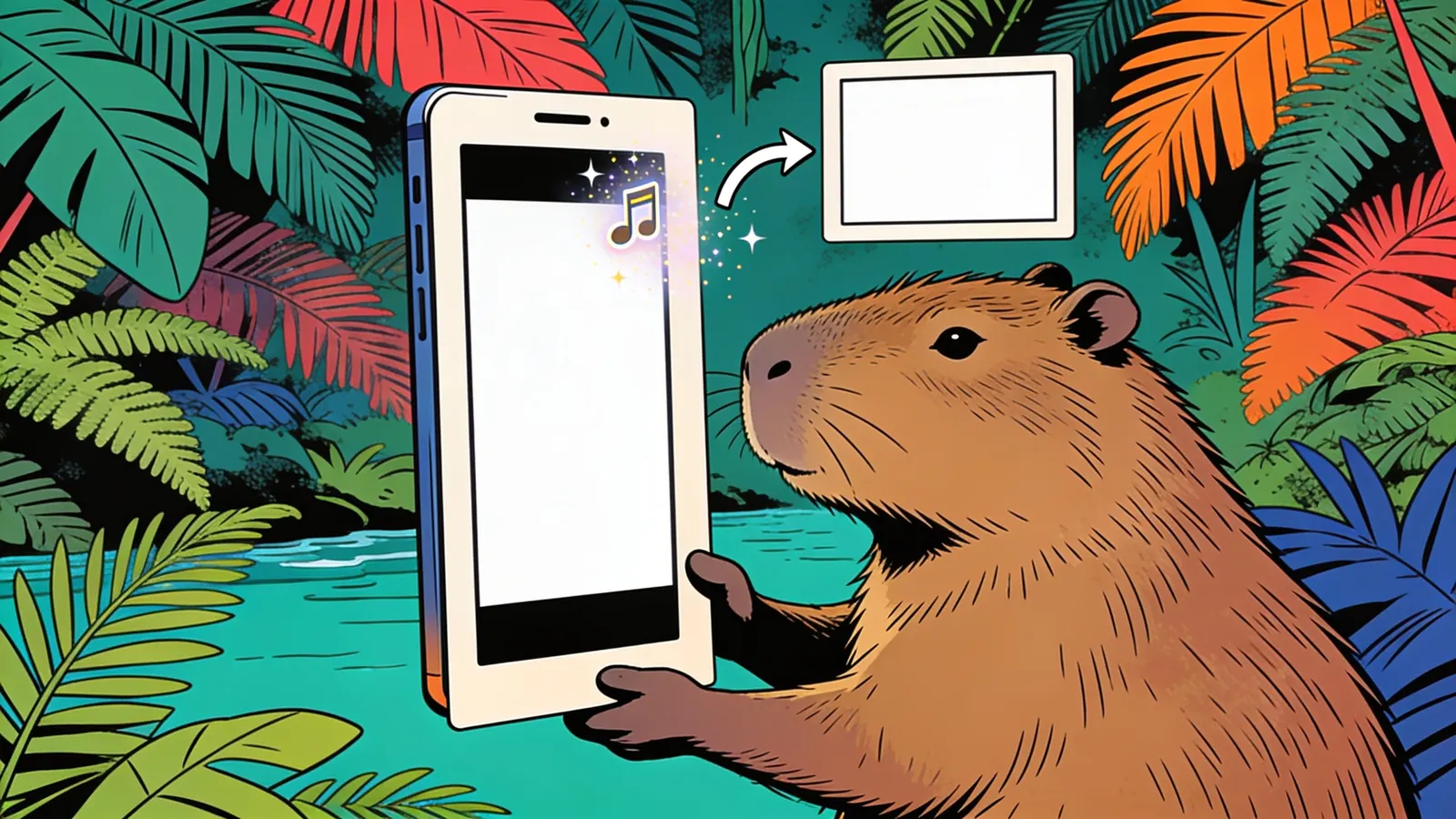
A clip with on-screen text baked into every frame.
The same clip with the text gone, ready to reuse or repost.
Upload a clip, identify the text overlay, and restore the background as cleanly as possible.
Upload the video clip containing the text, captions, watermark, or logo you want removed. Works with common video formats including MP4, MOV, and more.
Repurpose or reuse footage that has hardcoded captions, old branding, or channel watermarks baked in — without spending hours in frame-by-frame editing software.
Clean up promotional video assets that carry outdated text overlays, campaign-specific watermarks, or subtitle burns before republishing across new channels or platforms.
Remove timestamps, date stamps, or legacy branding from security footage, archived recordings, or older corporate videos to produce clean, reusable assets.
Describe where the text sits — bottom center, top-right corner, lower-left — rather than just saying 'there's some text.' Position is one of the most useful signals the agent has for accurate targeting.
Mention the color, size, and style if you can (e.g., 'white bold sans-serif subtitles' or 'small yellow italic username'). This helps distinguish the target element from other text that should be left alone.
Tell the agent whether the text is present throughout the whole video or only during specific segments — for example, 'the watermark appears for the entire duration' versus 'the lower-third title card only shows in the first 5 seconds.'
If you need several things removed — say, subtitles AND a watermark — list each one on its own line with its own description. Bundling them clearly helps the agent treat each removal as a distinct task.
If you know whether the text sits over a plain color, a moving scene, or a busy background, include that detail. It sets realistic expectations and helps the agent choose the most appropriate restoration method.
If your video has text or graphics you want to keep, say so explicitly — for example, 'remove only the bottom subtitle bar, leave the top-left logo intact.' This prevents the agent from over-removing elements you still need.
Review output quality, follow-up checks, and download expectations for video text removal.
For most clips, the tool can cleanly remove static or slow-moving text overlays — subtitles, watermarks, timestamps, and logos — especially when the background behind them is relatively uniform or simple. Restoration quality is typically strongest on plain-color backgrounds or gently blurred backgrounds. On footage with detailed moving scenes directly behind the text (e.g., fast action, busy crowd scenes, or highly textured surfaces), you may see some blurring, smearing, or slight color mismatch in the restored area. Semi-transparent watermarks are usually removable but may leave faint residual artifacts depending on opacity. Processing time scales with video length and resolution. Best input: a video clip plus the text overlay location, color, size, timing, and whether any other on-screen graphics should stay untouched.
Example: Input: a 20-second MP4 with hardcoded white subtitles along the bottom and a small handle in the top-left corner. Output: a cleaner clip where those text overlays are removed and the underlying background is reconstructed as naturally as possible. Good for repurposing footage you have rights to reuse.
Yes, the tool is designed to handle hardcoded text — text that's baked into the actual frames rather than existing as a separate subtitle track. Results are typically strong for text on plain or simple backgrounds, though complex or textured backgrounds behind the text may show some visible restoration artifacts.
Sign up free and put AI agents to work across your tasks, from quick jobs to complete end-to-end workflows, right in your browser, no setup needed.
Get started for free