Remove Pages from PDF
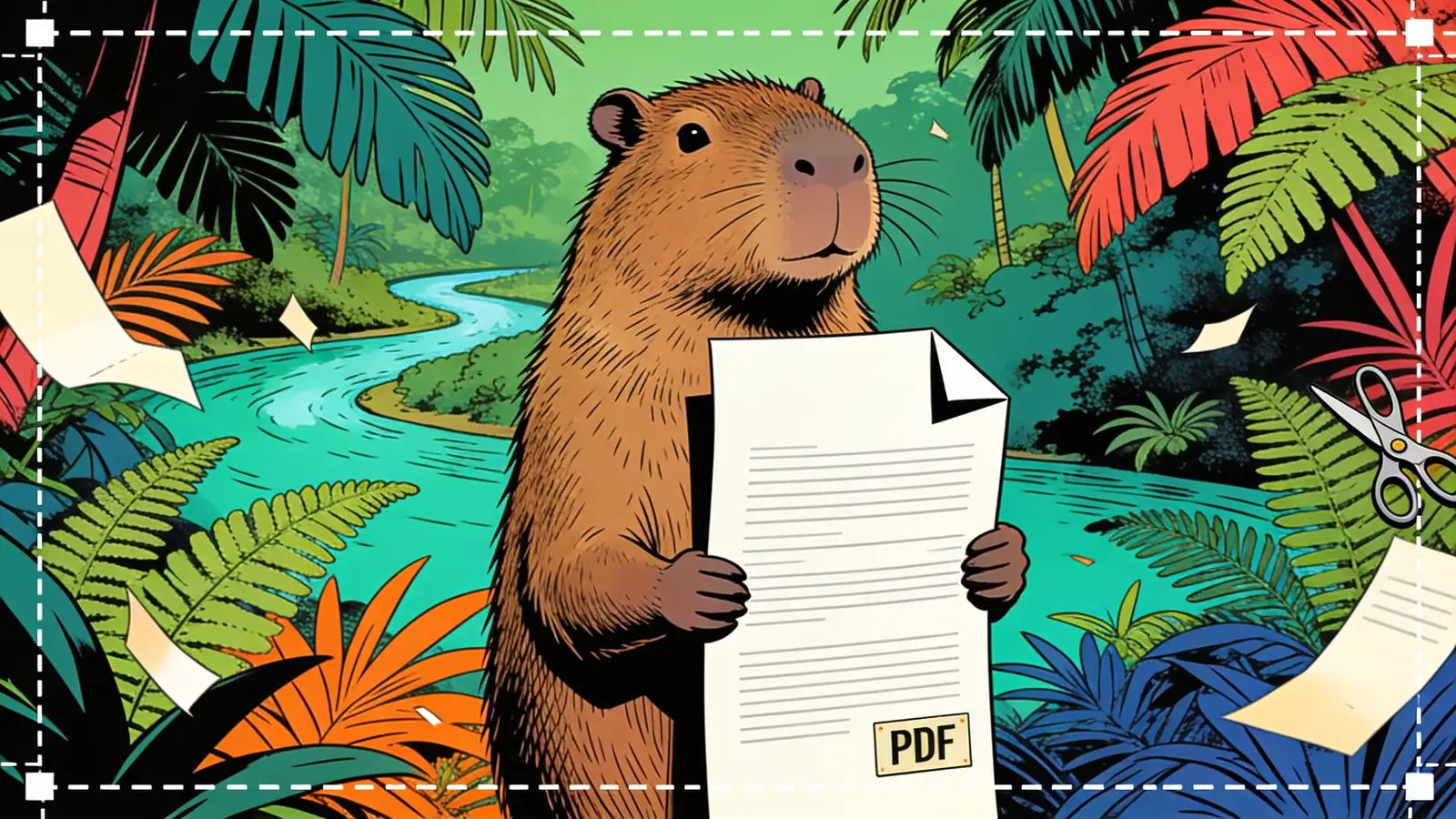
Delete the pages you do not need from a PDF. Tell Happycapy which pages or ranges to remove — a cover sheet, blank pages, an appendix — and it returns a clean PDF with the remaining pages in order, untouched. Free to start.
How it works
Say which pages
Pick an example or list the pages or ranges to delete — or the pages to keep.
Attach your PDF
Continue into Happycapy and drop in your file — one PDF or a whole folder.
Let Happycapy remove them
It deletes exactly those pages and keeps the rest in their original order.
Download your PDF
Review and download a clean PDF with only the pages you wanted.
Who is this for
Office and admin staff
Drop cover sheets, fax headers, or an appendix before sending a document on.
Students
Trim a long PDF down to just the pages you need to submit or print.
Anyone cleaning scans
Delete the blank pages that double-sided scanning leaves behind.
Six prompt-engineering tips that move the needle
Small changes in how you write a prompt make the biggest difference in output.
List pages or ranges
"pages 3 to 6" or "page 1 and the last page" — Happycapy removes exactly those.
Or say what to keep
"keep only pages 1-10" is often easier than listing every page to drop.
Remove blanks automatically
Ask to delete blank pages after scanning a double-sided document.
Order is preserved
The remaining pages stay in their original sequence and formatting.
Combine with other edits
After removing pages, ask Happycapy to also rotate or crop if needed.
Batch a folder
Apply the same page removal across many PDFs at once.
What to expect
Typically removes any combination of individual pages or ranges (e.g. pages 1, 5, 10–15) from a PDF in seconds, returning a clean file with remaining pages intact. File size reduces roughly proportionally to the fraction of pages removed — cutting 20 pages from a 100-page, 5 MB PDF usually yields a file around 4 MB.
Example: A 48-page, 12 MB sales report with a 3-page cover sheet and a 6-page appendix: after removing pages 1–3 and 43–48, the output is a 39-page PDF at roughly 9.75 MB, with all remaining pages and their embedded fonts, images, and links untouched.
Good to know
- File size reduction is proportional to page content — removing mostly blank or text-only pages from an image-heavy PDF may save very little space compared to expectations.
- Interactive elements tied to removed pages (cross-document links, bookmarks, a table of contents pointing to deleted pages) are not automatically updated or removed, so they may become broken in the output.
- Very large PDFs (100+ MB or 500+ pages) may hit upload or processing limits depending on the plan tier, and processing time can increase significantly.
Frequently asked questions
How do I remove pages from a PDF for free?
Upload your PDF and type which pages to delete — for example, 'remove pages 1, 4, and 7' or 'delete the last three pages' — and the tool returns a trimmed PDF at no cost. No account is required to get started.
Can I remove a range of pages at once?
Yes. You can specify a range such as 'pages 5 through 12', a comma-separated list like '2, 7, 15', or a mix of both in a single instruction. All listed pages are dropped in one pass, and the rest are left untouched.
Can I keep certain pages instead of listing what to delete?
Yes. Framing it as 'keep only pages 1 to 8' works just as well as listing pages to remove — whichever description is shorter for your document. The tool figures out which pages to drop either way.
Will the remaining pages stay in order and look the same?
Yes. The surviving pages retain their original sequence, formatting, fonts, and embedded images. Only the deleted pages are stripped out; nothing else in the file is reprocessed or compressed.
Can the tool detect and remove blank pages automatically?
Yes. Ask it to 'remove all blank pages' and it scans the document for empty or near-empty pages — particularly useful after scanning double-sided originals where every other page may be blank.
Can I remove different pages from multiple PDFs in one session?
Yes. You can supply several PDFs and give each its own removal instruction in a single message — for instance, 'from report.pdf remove page 1; from appendix.pdf remove pages 9 to 11' — and each file is processed separately.
Does the tool work in a browser without installing anything?
Yes. The page-removal engine runs in the cloud, so any modern browser on desktop or mobile is enough. You upload the PDF, receive the edited file as a download, and nothing is saved to your device in the process.
Ready to create?
Sign up free and put AI agents to work across your tasks, from quick jobs to complete end-to-end workflows, right in your browser, no setup needed.
Get started for free