Developers translating designs into code
Skip the tedious part of manually converting a Figma export or stakeholder screenshot into markup. Get a solid HTML/CSS starting point and spend your time on logic, not layout scaffolding.
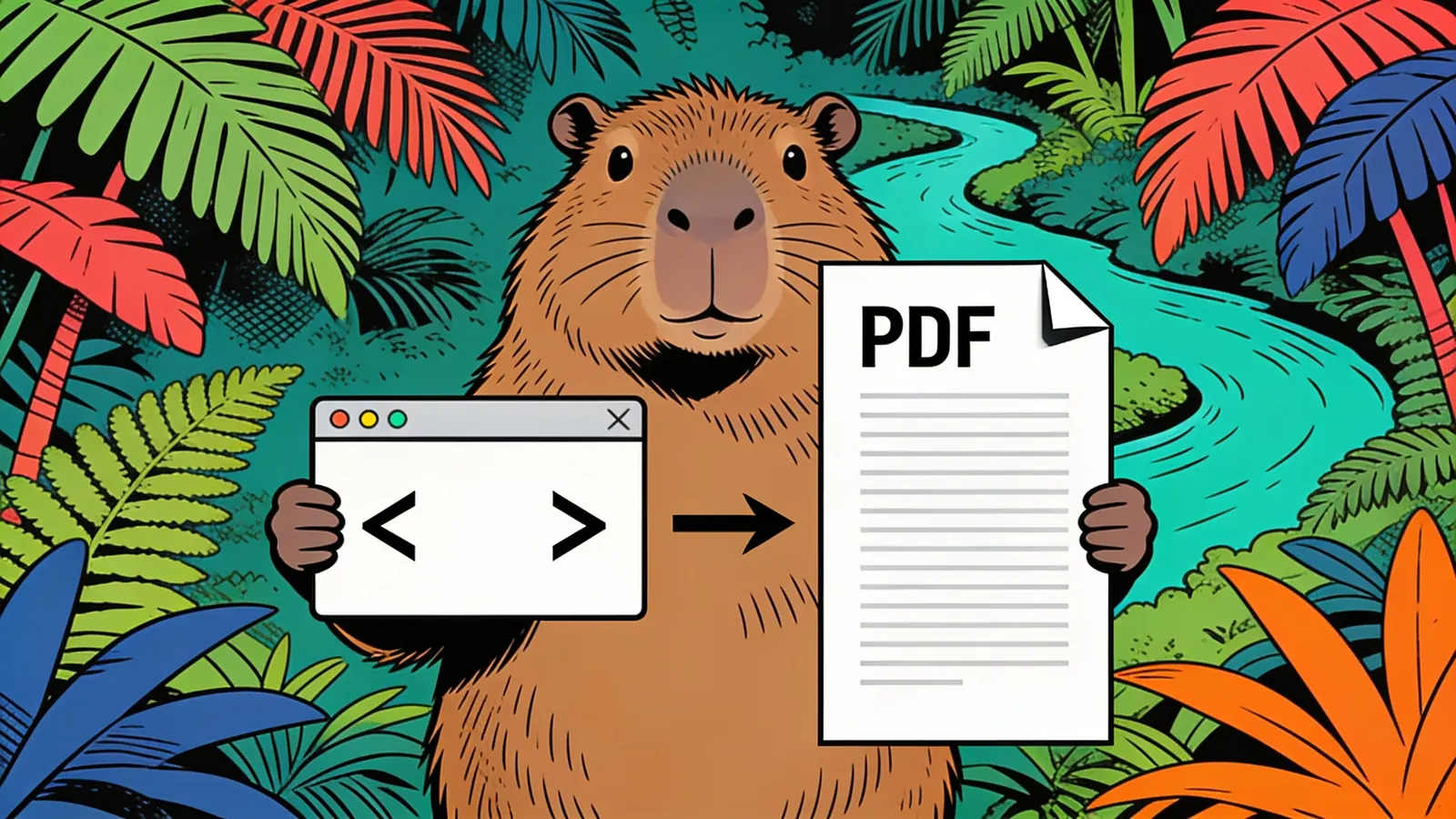
Turn any UI screenshot into clean, responsive HTML — instantly.
Upload a screenshot or mockup and describe the code structure you want generated.
Attach a screenshot, design export, or mockup image — anything that shows a UI layout you want to convert to code. Higher resolution and clearer designs produce better results.
Skip the tedious part of manually converting a Figma export or stakeholder screenshot into markup. Get a solid HTML/CSS starting point and spend your time on logic, not layout scaffolding.
Turn your static mockups into live, browser-viewable HTML without writing a line of code yourself. Ideal for quickly validating a layout or sharing a working prototype with clients.
If you've got a design you love but your page builder can't replicate it, image to HTML gives you clean code you can hand off to a developer or inject directly into a custom HTML block.
Saying 'use Tailwind CSS', 'use CSS Grid', or 'use vanilla CSS with BEM naming' guides the output significantly. Without guidance, the agent will make its own choice, which may not match your project.
If you need mobile breakpoints, say so explicitly: 'make it responsive with breakpoints at 768px and 1200px.' Otherwise the output may be a fixed-width layout that only looks right at one screen size.
If your image includes a modal, dropdown, or tab component, mention whether you want static HTML placeholders or working JavaScript. The agent won't guess your intent on interactive behaviour.
For dense dashboards or long pages, try 'focus only on the navigation and hero section' rather than asking for the full page at once. Narrower scope typically produces cleaner, more accurate code.
If matching colors closely matters, say 'extract and use the exact hex colors visible in the image.' For fonts, name the typeface if you know it, or ask the agent to use a close Google Fonts substitute.
Adding 'include HTML comments labeling each section' to your prompt makes the output far easier to navigate and hand off to teammates, especially for multi-section page layouts.
Review output quality, follow-up checks, and download expectations for image to HTML.
For a clean, modern UI screenshot — like a SaaS landing page or a simple form — the agent will typically produce structurally sound HTML with reasonably accurate colors, font sizing, and layout proportions. Flexbox or Grid structure is usually correct. Spacing is often close but rarely exact without manual tweaking. Complex shadows, custom illustrations, or unusual typefaces are frequently approximated rather than reproduced precisely. Results are generally more useful as a 70–80% starting point than as production-ready, pixel-perfect code. Best input: a clear screenshot or mockup plus requirements for framework, responsiveness, assets, interactions, and whether the output should be a component or full page.
Example: Input: a screenshot of a pricing card section with three tiers, CTA buttons, and a toggle. Output: structured HTML and CSS that recreates the layout with responsive columns and editable text. Good for converting mockups, screenshots, and design references into starter front-end code.
Results are typically quite close for layout, color, and typography, but pixel-perfect replication isn't guaranteed. Simple, clean designs convert better than highly stylized or complex UIs. Expect to do some CSS tweaking, especially for precise spacing and custom fonts.
Sign up free and put AI agents to work across your tasks, from quick jobs to complete end-to-end workflows, right in your browser, no setup needed.
Get started for free