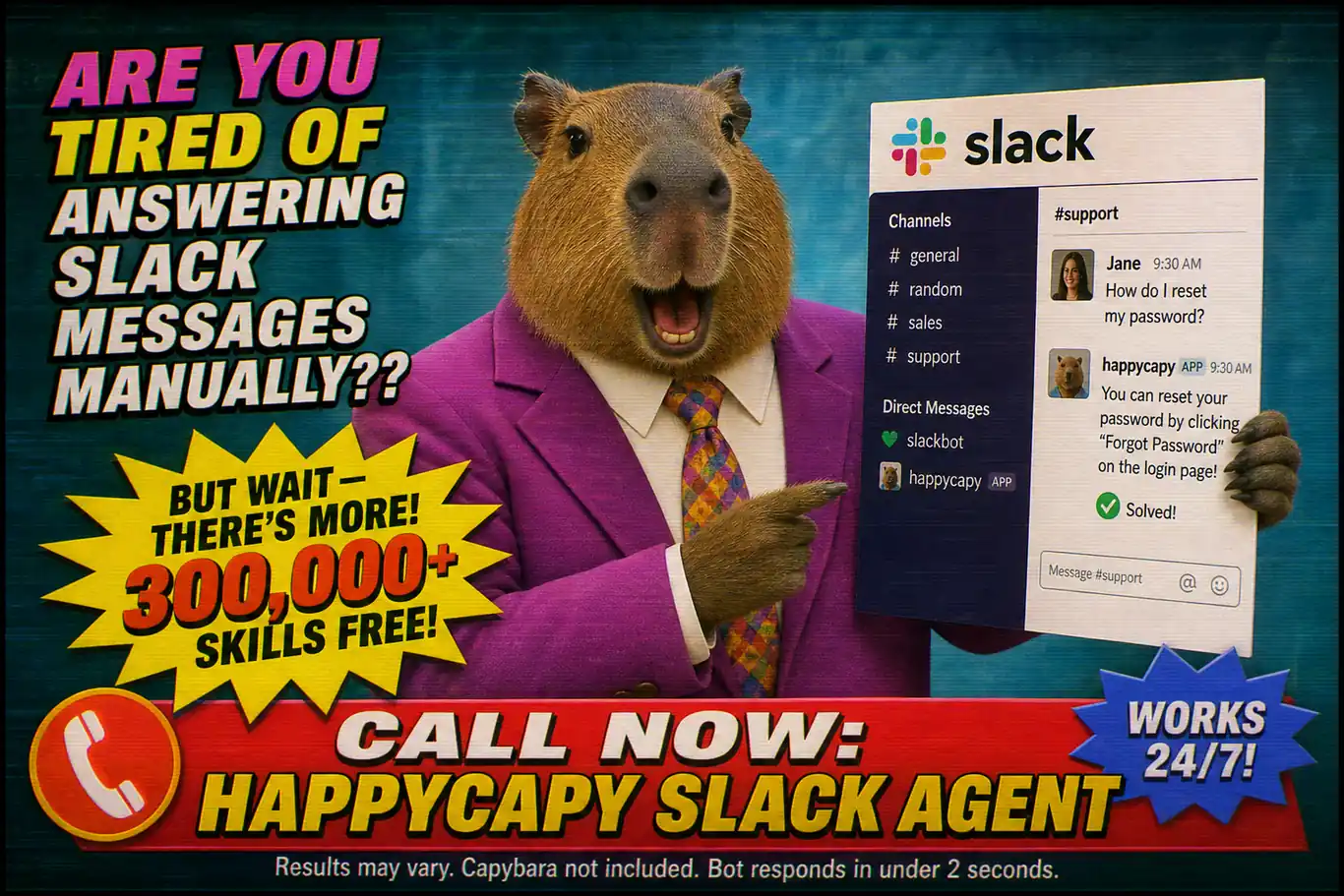
How to Connect Happycapy to Slack: AI Agent Power in Every Channel
Socket Mode, full tool access, per-thread memory: Happycapy becomes your team's AI agent inside Slack.
Slack has 32 million daily active users. Most Slack bots answer questions. Happycapy's Slack integration does something fundamentally different: it executes tasks. When you @mention it, it can write and run code, generate images, search the web, create files, and deliver finished results, all inside a Slack thread. No switching tabs. No copy-pasting outputs. Just a message in and a result out.
The Architecture Difference
Most Slack integrations require you to expose a public webhook URL, configure SSL certificates, and run a server that Slack can reach from the internet. That is three infrastructure problems before you've written a single line of business logic.
Happycapy uses Socket Mode. Instead of Slack reaching in to your server, the bot opens an outbound WebSocket connection to Slack's infrastructure. There is no public URL to configure. No SSL certificate to manage. No firewall rules to open. You run the skill, it connects, and it stays connected.
The second difference is where the bot lives. Happycapy runs in a persistent Fly.io Linux sandbox: root access, Python 3.11, Node.js v24, always on. When your bot receives a message, it isn't spinning up a serverless function that times out in 10 seconds. It has a full environment available: persistent filesystem, network access, long-running processes.
The third difference is how it replies. Every response from Happycapy goes back to the same Slack thread where the message originated. Channels stay clean. Teams don't drown in bot noise. Per-thread conversation history is stored and forwarded with each new message, so the bot maintains context across an entire session in a thread. It knows what was discussed 20 messages ago.
| Capability | Typical Slack bot | Happycapy Slack bot |
|---|---|---|
| Requires public URL | Yes | No (Socket Mode) |
| Execution environment | Serverless / limited | Always-on Linux sandbox |
| Thread context | Usually none | Per-thread history |
| Can run code | No | Yes, full Bash |
| Available tools | Fixed integrations | 300,000+ Skills |
| AI model access | One model | All major models |
What You Can Do
Telling someone a Slack bot "has full tool access" is easy. Here is what that actually means in practice.
Write and run code, return results. Ask the bot to process a CSV file you drop in the channel, run a Python analysis script, and post the results back as a formatted table. It writes the code, runs it in the sandbox, and replies with output.
Generate images in a thread. Request an AI-generated product mockup directly from a Slack message. The bot calls image generation, uploads the file, and posts it in the thread, no leaving Slack to use a separate tool.
Search the web and summarize. Ask it to pull the latest pricing from a competitor's page and summarize the differences from what you charge. It fetches the page, reads it, and replies with a structured comparison.
Trigger any of 300,000+ Skills. Happycapy ships with over 300,000+ Skills, specialized capabilities covering code review, content generation, data analysis, SEO, market research, and hundreds of other workflows. Every single one is available from a Slack message.
Use DMs for private agent sessions. The bot works in direct messages the same way it works in channels. A private DM with the bot becomes a personal AI workspace inside Slack: conversation history, full tool access, no audience.
Invoke from any channel. There is no configuration per channel. Add the bot to #engineering, #marketing, and #data simultaneously. Each team gets the same full capabilities.
Pros
- No public URL or infrastructure required: Socket Mode handles the connection
- Full Bash and file system access inside the Happycapy sandbox
- Per-thread memory keeps multi-turn conversations coherent
- Access to all major AI models, not just one
- 300,000+ Skills available from any @mention
- Works in channels, group DMs, and 1:1 DMs
- Replies go to threads, keeping channels readable
- No message length limits on responses: results come back complete
Real Use Cases
Engineering team: code review and CI debugger in #dev. An engineering team pastes a failing CI log into the thread and @mentions Happycapy. It reads the stack trace, identifies the failing test, suggests a fix, and writes out the corrected code block. The team has a reviewable answer in the same thread where they raised the problem, without opening another tab or context-switching.
Marketing team: content generation from Slack. A marketing manager drops a product feature list into a thread and asks Happycapy to write five LinkedIn post drafts. It returns them in the same thread, tagged by angle (educational, provocative, story-driven). The manager picks one, asks for a revised version, and has a finished post ready to schedule, all from the Slack thread.
Solo founder: personal assistant in DMs. A founder uses Happycapy DMs as their operating system. Morning briefing: ask for a summary of overnight news about a competitor. Pre-call prep: ask it to pull the company's recent funding history. Post-meeting: drop in notes and ask for a structured action list. The per-thread history means context from last week's conversation is available when referenced in this week's thread.
Data team: quick analysis scripts in #data. A data analyst describes a transformation they need on a dataset and @mentions the bot. Happycapy writes the pandas script, confirms the logic in the reply, and the analyst copies it directly. For teams that want the bot to run the script against a file they upload, it handles that too, end-to-end within the thread.
How to Set It Up
Setup takes about five minutes. The full skill is available at github.com/ndpvt-web/happycapy-slack.
The high-level steps:
1. Create a Slack app. Go to api.slack.com/apps and create a new app. Choose "From scratch." Give it a name and pick your workspace.
2. Enable Socket Mode. Under "Settings → Socket Mode," toggle it on. Slack will generate an App-Level Token with connections:write scope. Copy it. You will need it as SLACK_APP_TOKEN.
3. Add bot scopes. Under "OAuth & Permissions → Bot Token Scopes," add: app_mentions:read, chat:write, channels:history, groups:history, im:history, mpim:history, channels:read, groups:read, im:read, files:write.
4. Enable Event Subscriptions. Under "Event Subscriptions," enable it and subscribe to bot events: app_mention, message.im.
5. Install the app. Under "OAuth & Permissions," install the app to your workspace. Copy the Bot User OAuth Token as SLACK_BOT_TOKEN.
6. Run the skill. In your Happycapy sandbox, set SLACK_BOT_TOKEN and SLACK_APP_TOKEN as environment variables and run the Slack skill. The bot connects via Socket Mode and begins listening immediately.
No server deployment. No domain. No SSL. The Happycapy sandbox handles everything. If you want to run it from your own machine instead, the setup on a Mac Mini as a persistent server works exactly the same way (see Mac Mini as an AI Server in 2026 for the full context on persistent local setups).
Frequently Asked Questions
Do I need a paid Slack plan? No. Socket Mode and the required bot scopes are available on Slack's free plan. You can set up and run the Happycapy Slack bot in a free workspace with no restrictions.
Does it work in DMs and channels both? Yes. The bot responds to @mentions in public channels, private channels, group DMs, and 1:1 direct messages. Behavior is identical in all contexts: full tool access, per-thread history.
How does conversation context work across multiple users in a channel? Context is per-thread. If multiple team members are talking to the bot in the same thread, the full thread history is sent with each message, so the bot sees all of it. If two separate threads are running simultaneously in a channel, each has its own isolated history. Users cannot see or affect each other's separate threads.
Can I restrict which channels or users can invoke the bot? Yes. The skill supports an allowlist of channel IDs and user IDs. Messages from channels or users not on the list are silently ignored. By default the bot responds to everything it can see, so adding restrictions is a one-step configuration change.
Does the bot need a public URL? No. This is the core architecture advantage. Socket Mode means the bot opens an outbound WebSocket to Slack. Slack never needs to reach your server. There is no public URL, no SSL certificate, and no firewall configuration required.
What happens if I @mention it in a thread, does it see previous messages? Yes. When you @mention Happycapy in a thread, the skill fetches the full thread history from Slack's API and includes it in the context sent to the bot. It sees every message in the thread from the beginning, so it has complete context for your request.
Can my whole team share one Happycapy bot? Yes. One bot token works across every channel and DM in your workspace. Your whole team can @mention the same bot simultaneously. Each thread maintains its own context, so concurrent usage from multiple team members does not cause context mixing.
Final Thoughts
Most Slack integrations stop at retrieval. They can look things up, but they cannot act. Happycapy's Slack skill crosses that line. It brings the full execution environment (file system, Bash, all major AI models, 300,000+ Skills) directly into your team's existing communication layer. The result is an AI agent that lives where your team already works, without requiring anyone to context-switch to a separate tool.